> ## Documentation Index
> Fetch the complete documentation index at: https://portkey-docs-add-third-party-integration-issues-fixes.mintlify.site/llms.txt
> Use this file to discover all available pages before exploring further.
# ToolJet
> ToolJet is a low-code platform that lets you build apps by connecting APIs and data sources, with Portkey integration adding AI features like chat interfaces and automation.
This guide provides a **streamlined process** for integrating **Portkey AI** into ToolJet using the ToolJet Marketplace Plugin. Follow this guide to add **AI-powered capabilities** such as chat completions and automations into your ToolJet apps, helping developers create powerful, low-code applications backed by Portkey's AI for chat-based interfaces and automated workflows.
## Prerequisites
* **Portkey API Key** and **Virtual Key** from your Portkey dashboard.
* **ToolJet Account** with access to the **Marketplace Plugin feature**.
* Basic familiarity with ToolJet UI components.
Watch this demo for a quick walkthrough on ToolJet's UI components.
Before following this guide, ensure that you have completed the setup for using marketplace plugins in ToolJet.
## Step-by-Step Onboarding
1. Go to **ToolJet Dashboard > Plugins > Marketplace**.
2. Search for **Portkey Plugin**.
3. Click **Install** to add the plugin to your project.
If Portkey has already been added to your marketplace, you can skip this step.
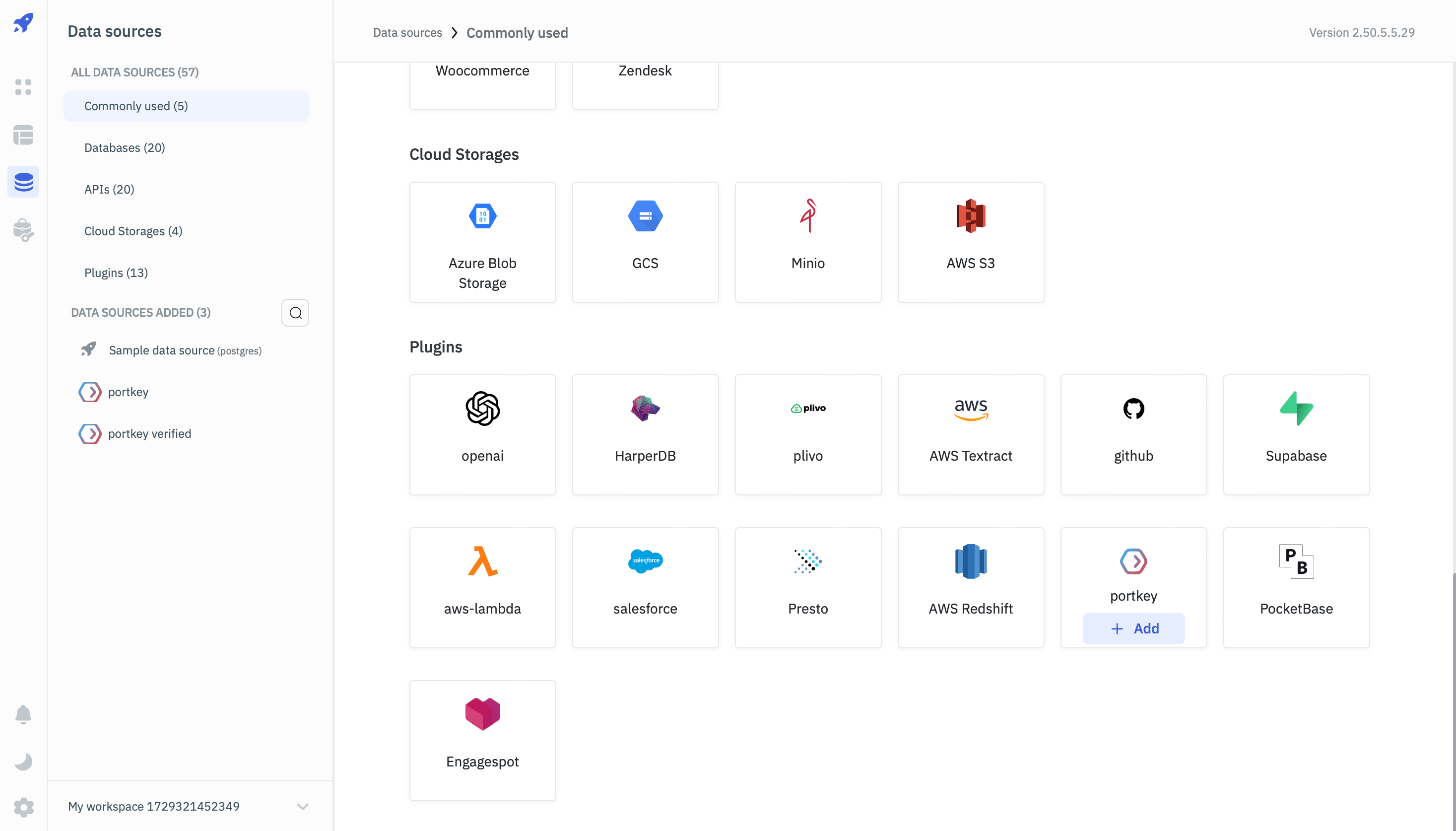
1. Navigate to **Data Sources** in your ToolJet workspace.
2. Open **Plugins**.
3. Click **Add Portkey**.
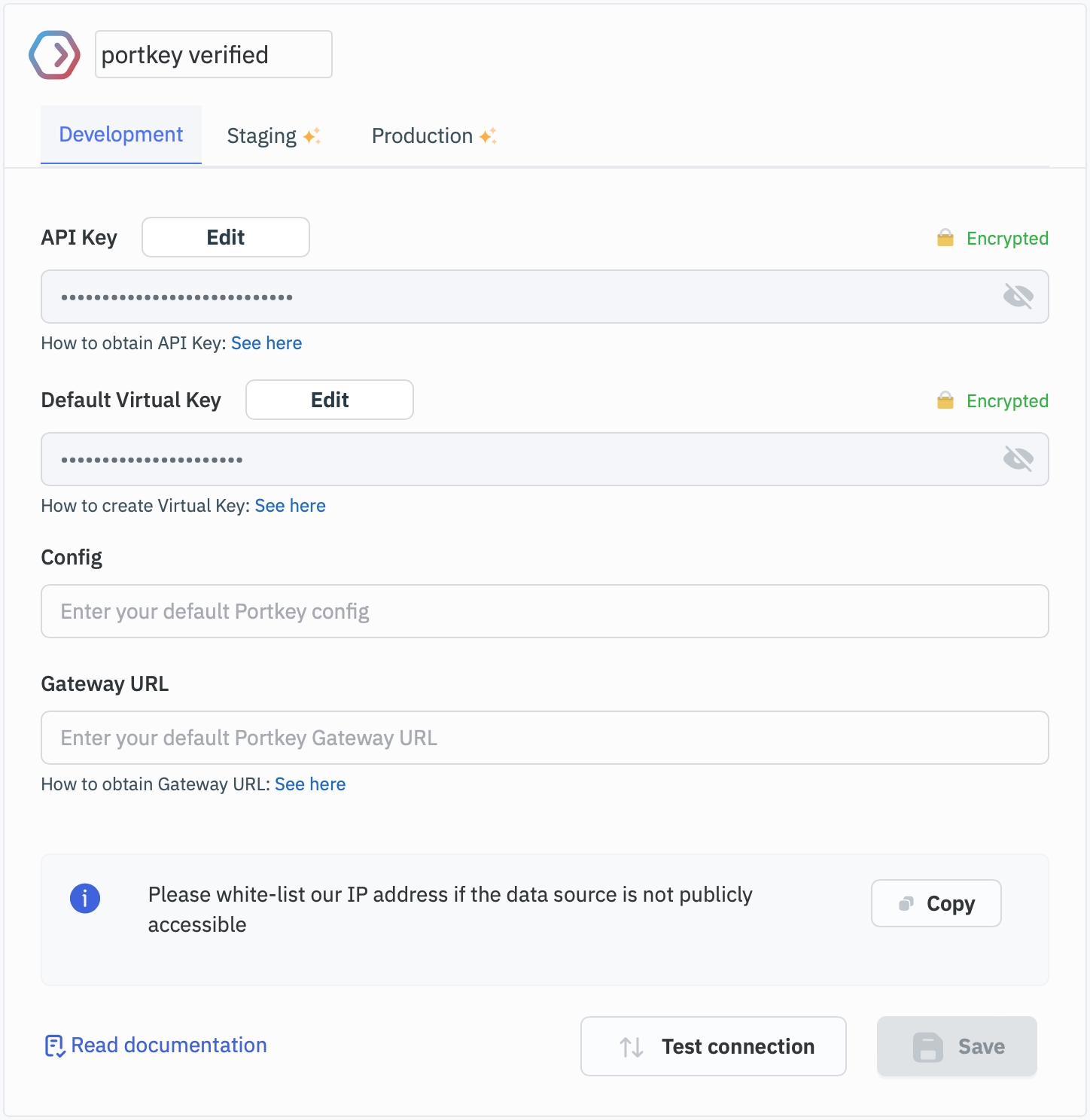
 1. Enter the following details:
* **Authorization:** Your Portkey API Key
* **Default Virtual Key:** Your Portkey Virtual Key
2. **Test** the connection to ensure the keys are configured correctly.
1. Enter the following details:
* **Authorization:** Your Portkey API Key
* **Default Virtual Key:** Your Portkey Virtual Key
2. **Test** the connection to ensure the keys are configured correctly.
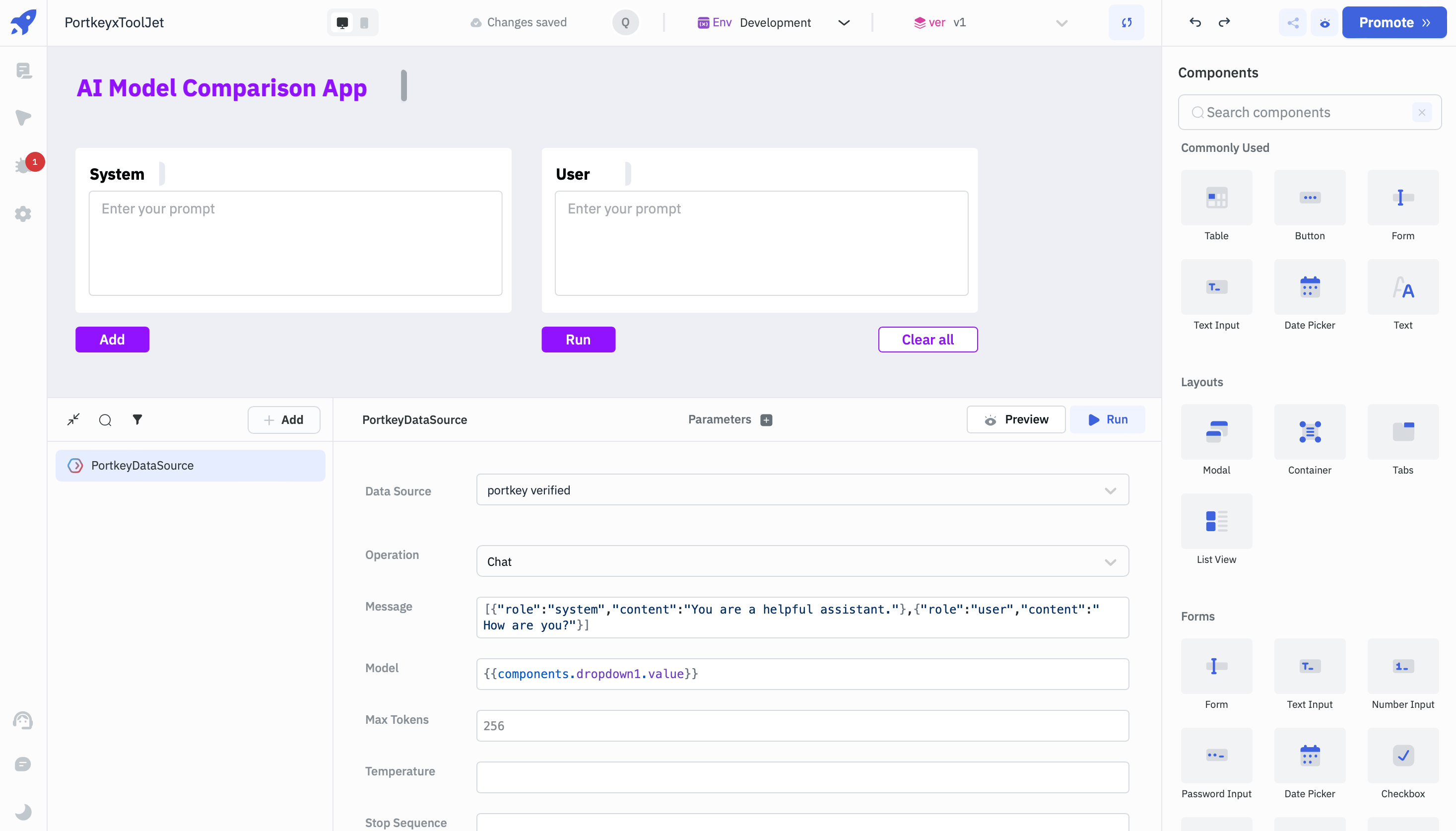
 1. Go to **Queries > Add Datasource > Select Portkey Plugin**.
2. From the dropdown, **Select an Operation** (details in the next section).
3. **Run the query** to verify it responds correctly.
1. Go to **Queries > Add Datasource > Select Portkey Plugin**.
2. From the dropdown, **Select an Operation** (details in the next section).
3. **Run the query** to verify it responds correctly.
 1. Add **Text Input** and **Button** widgets to your app's interface.
2. Configure the Button's **onClick action** to **Execute Query** using the Portkey API.
3. Use a **Text Box** widget to display the query results.
1. Use **Preview Mode** to test the interaction between your app's UI and the Portkey API.
2. Deploy the app from the ToolJet dashboard.
## Supported Operations
Portkey supports the following operations within ToolJet:
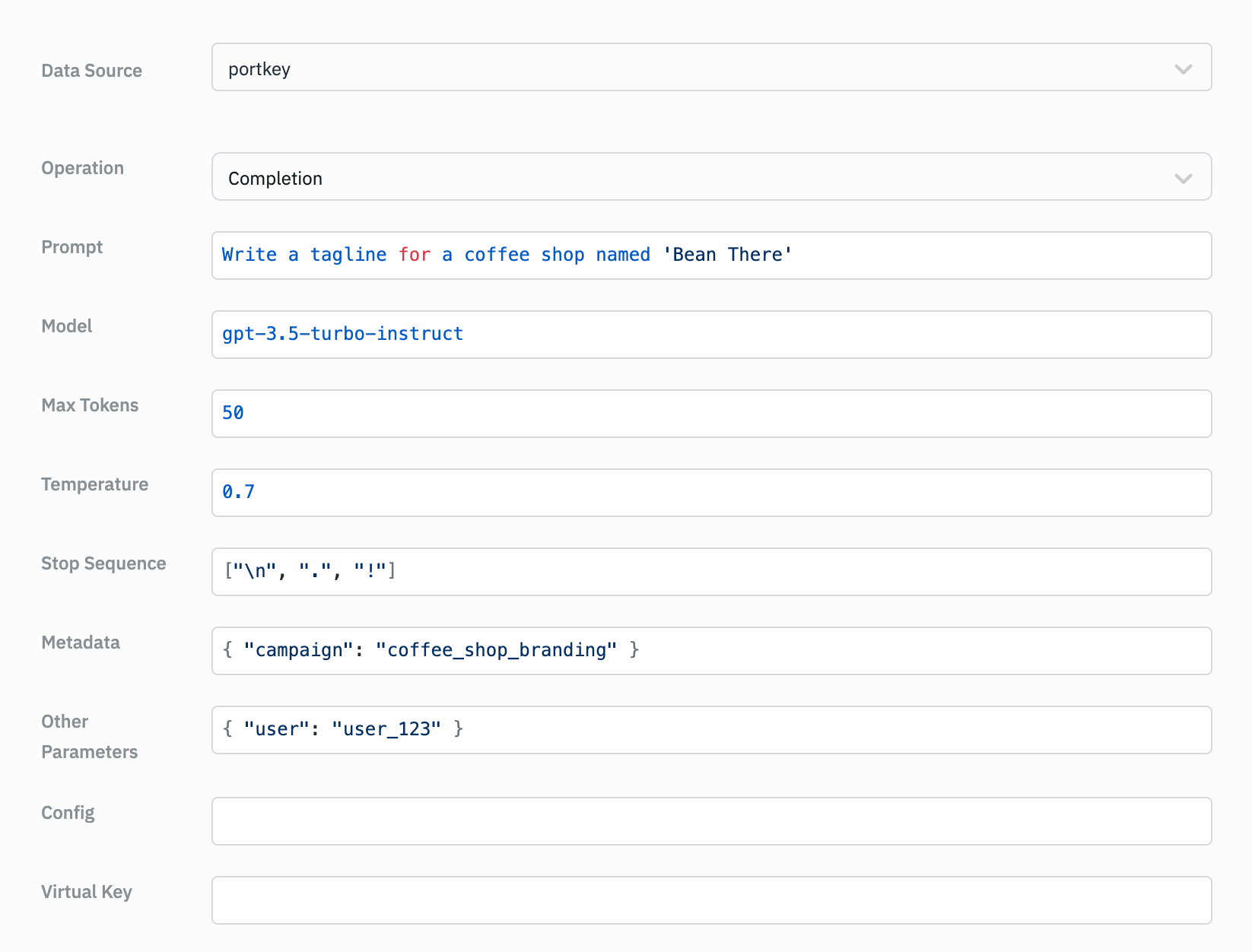
#### Completion
Generates text completions based on a given prompt.
**Parameters:**
* **Prompt:** Input text to generate completions for.
* **Model:** The AI model to use.
* **Max Tokens:** Maximum number of tokens to generate.
* **Temperature:** Controls randomness.
* **Stop Sequences:** Sequences where the API stops generating further tokens.
* **Metadata:** Additional metadata for the request.
* **Other Parameters:** Additional request parameters.
1. Add **Text Input** and **Button** widgets to your app's interface.
2. Configure the Button's **onClick action** to **Execute Query** using the Portkey API.
3. Use a **Text Box** widget to display the query results.
1. Use **Preview Mode** to test the interaction between your app's UI and the Portkey API.
2. Deploy the app from the ToolJet dashboard.
## Supported Operations
Portkey supports the following operations within ToolJet:
#### Completion
Generates text completions based on a given prompt.
**Parameters:**
* **Prompt:** Input text to generate completions for.
* **Model:** The AI model to use.
* **Max Tokens:** Maximum number of tokens to generate.
* **Temperature:** Controls randomness.
* **Stop Sequences:** Sequences where the API stops generating further tokens.
* **Metadata:** Additional metadata for the request.
* **Other Parameters:** Additional request parameters.
 ```javascript theme={null}
{
"id": "cmpl-9vNUfM8OP0SwSqXcnPwkqzR7ep8Sy",
"object": "text_completion",
"created": 1723462033,
"model": "gpt-3.5-turbo-instruct",
"choices": [
{
"text": "nn"Experience the perfect brew at Bean There."",
"index": 0,
"logprobs": null,
"finish_reason": "stop"
}
],
"usage": {
"prompt_tokens": 13,
"completion_tokens": 10,
"total_tokens": 23
}
}
```
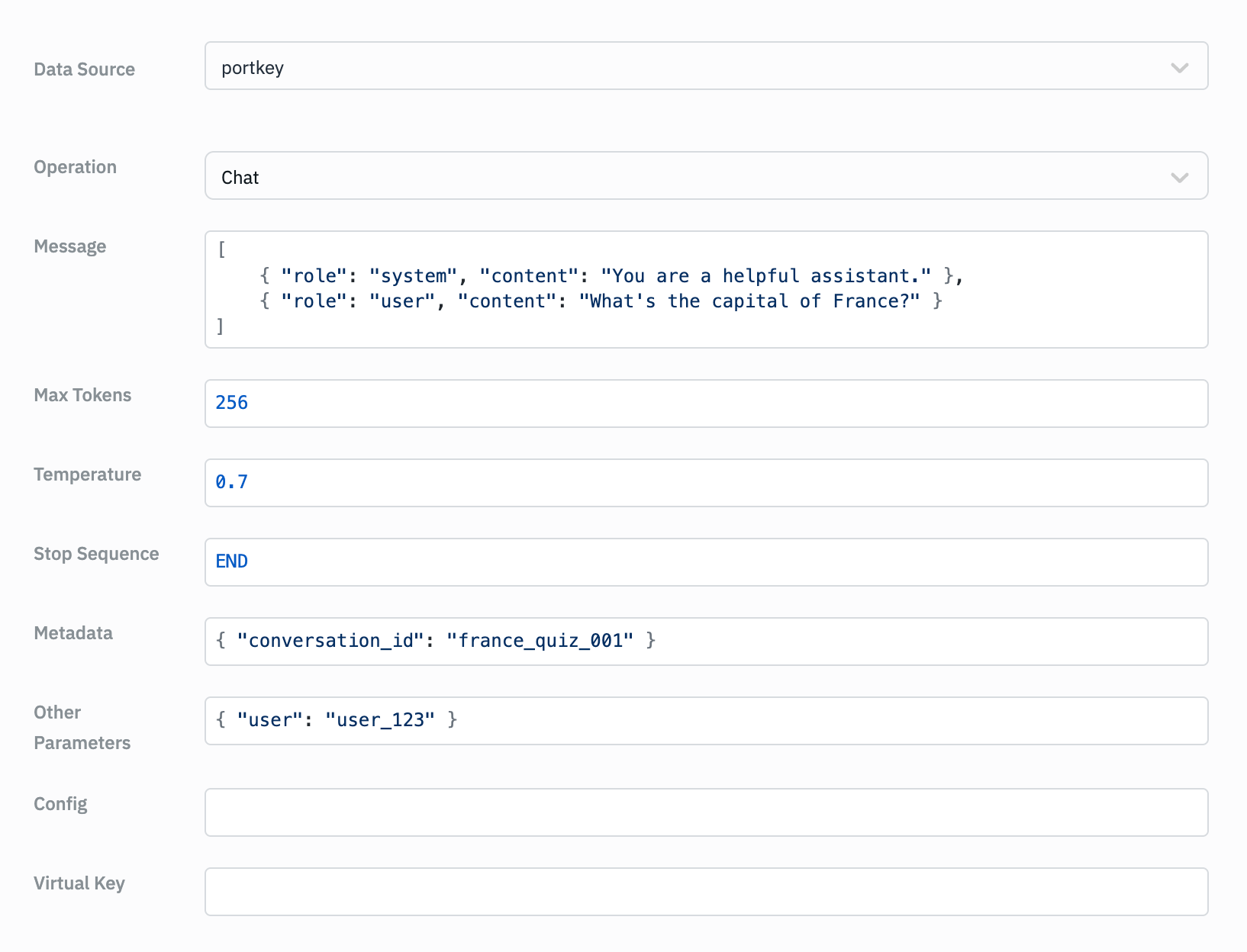
#### Chat
Generates chat completions based on a series of messages.
**Parameters:**
* **Messages:** Array of message objects representing the conversation.
* **Model:** The AI model to use.
* **Max Tokens:** Maximum number of tokens to generate.
* **Temperature:** Controls randomness.
* **Stop Sequences:** Sequences where the API stops generating further tokens.
* **Metadata:** Additional metadata for the request.
* **Other Parameters:** Additional request parameters.
```javascript theme={null}
{
"id": "cmpl-9vNUfM8OP0SwSqXcnPwkqzR7ep8Sy",
"object": "text_completion",
"created": 1723462033,
"model": "gpt-3.5-turbo-instruct",
"choices": [
{
"text": "nn"Experience the perfect brew at Bean There."",
"index": 0,
"logprobs": null,
"finish_reason": "stop"
}
],
"usage": {
"prompt_tokens": 13,
"completion_tokens": 10,
"total_tokens": 23
}
}
```
#### Chat
Generates chat completions based on a series of messages.
**Parameters:**
* **Messages:** Array of message objects representing the conversation.
* **Model:** The AI model to use.
* **Max Tokens:** Maximum number of tokens to generate.
* **Temperature:** Controls randomness.
* **Stop Sequences:** Sequences where the API stops generating further tokens.
* **Metadata:** Additional metadata for the request.
* **Other Parameters:** Additional request parameters.
 ```javascript Response Example theme={null}
{
"id": "chatcmpl-9vNIlfllXOPEmroKFajK2nlJHzhXA",
"object": "chat.completion",
"created": 1723461295,
"model": "gpt-3.5-turbo-0125",
"choices": [
{
"index": 0,
"message": {
"role": "assistant",
"content": "The capital of France is Paris.",
"refusal": null
},
"logprobs": null,
"finish_reason": "stop"
}
],
"usage": {
"prompt_tokens": 24,
"completion_tokens": 7,
"total_tokens": 31
},
"system_fingerprint": null
}
```
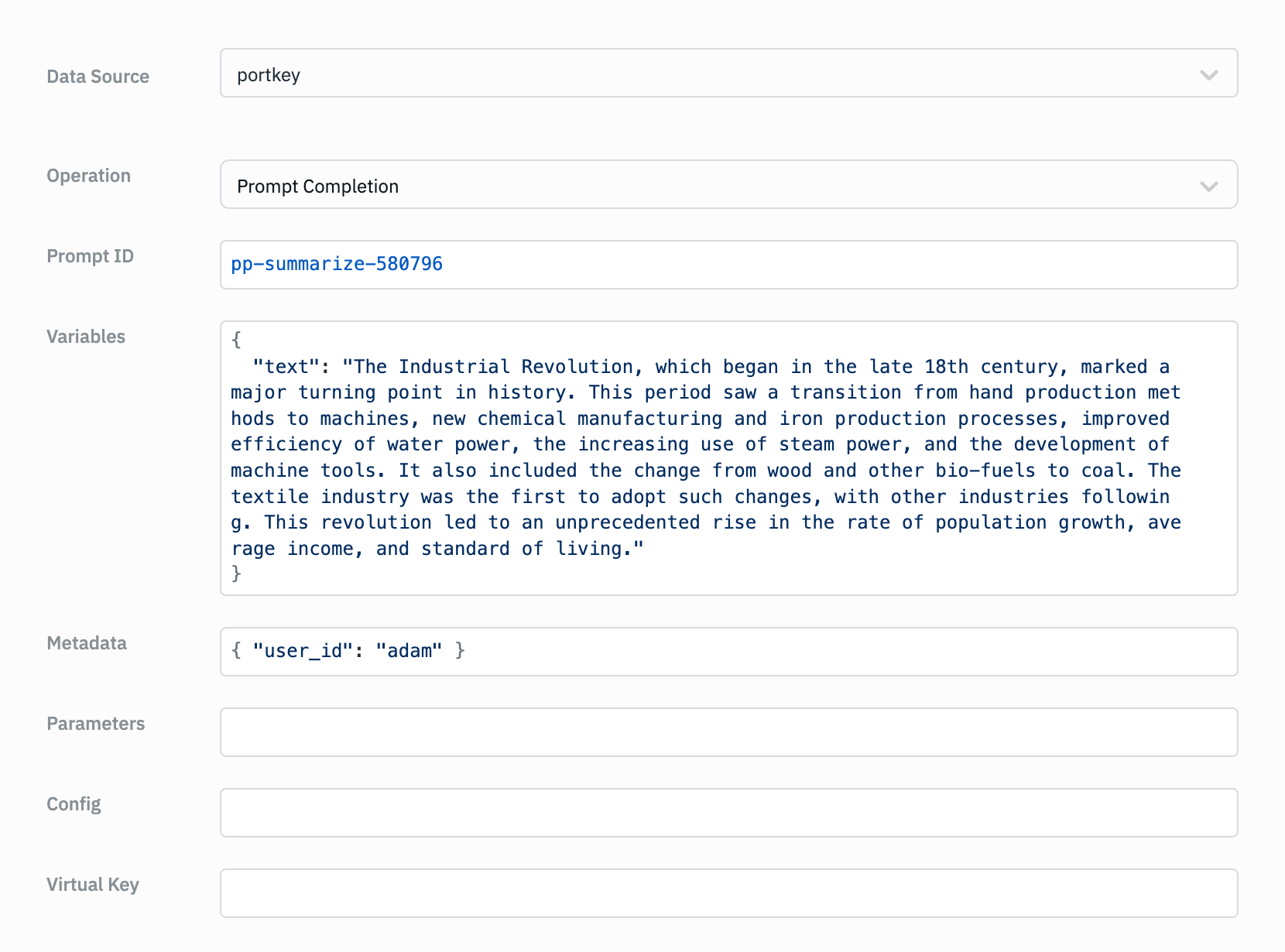
#### Prompt Completion
Generates completions based on a pre-defined prompt.
**Parameters:**
* **Prompt ID:** The ID of the pre-defined prompt.
* **Variables:** Variables to use in the prompt.
* **Parameters:** Additional parameters for the completion.
* **Metadata:** Additional metadata for the request.
```javascript Response Example theme={null}
{
"id": "chatcmpl-9vNIlfllXOPEmroKFajK2nlJHzhXA",
"object": "chat.completion",
"created": 1723461295,
"model": "gpt-3.5-turbo-0125",
"choices": [
{
"index": 0,
"message": {
"role": "assistant",
"content": "The capital of France is Paris.",
"refusal": null
},
"logprobs": null,
"finish_reason": "stop"
}
],
"usage": {
"prompt_tokens": 24,
"completion_tokens": 7,
"total_tokens": 31
},
"system_fingerprint": null
}
```
#### Prompt Completion
Generates completions based on a pre-defined prompt.
**Parameters:**
* **Prompt ID:** The ID of the pre-defined prompt.
* **Variables:** Variables to use in the prompt.
* **Parameters:** Additional parameters for the completion.
* **Metadata:** Additional metadata for the request.
 ```javascript Response Example theme={null}
{
"id": "chatcmpl-9w6D8jZciWVf1DzkgqNZK14KUvA4d",
"object": "chat.completion",
"created": 1723633926,
"model": "gpt-4o-mini-2024-07-18",
"choices": [
{
"index": 0,
"message": {
"role": "assistant",
"content": "The Industrial Revolution, starting in the late 18th century, transformed production from hand methods to machine-based processes, introducing new manufacturing techniques, steam power, and machine tools. It marked a shift from bio-fuels to coal, with the textile industry leading the way. This period resulted in significant population growth, increased average income, and improved living standards.",
"refusal": null
},
"logprobs": null,
"finish_reason": "stop"
}
],
"usage": {
"prompt_tokens": 145,
"completion_tokens": 71,
"total_tokens": 216
},
"system_fingerprint": "fp_48196bc67a"
}
```
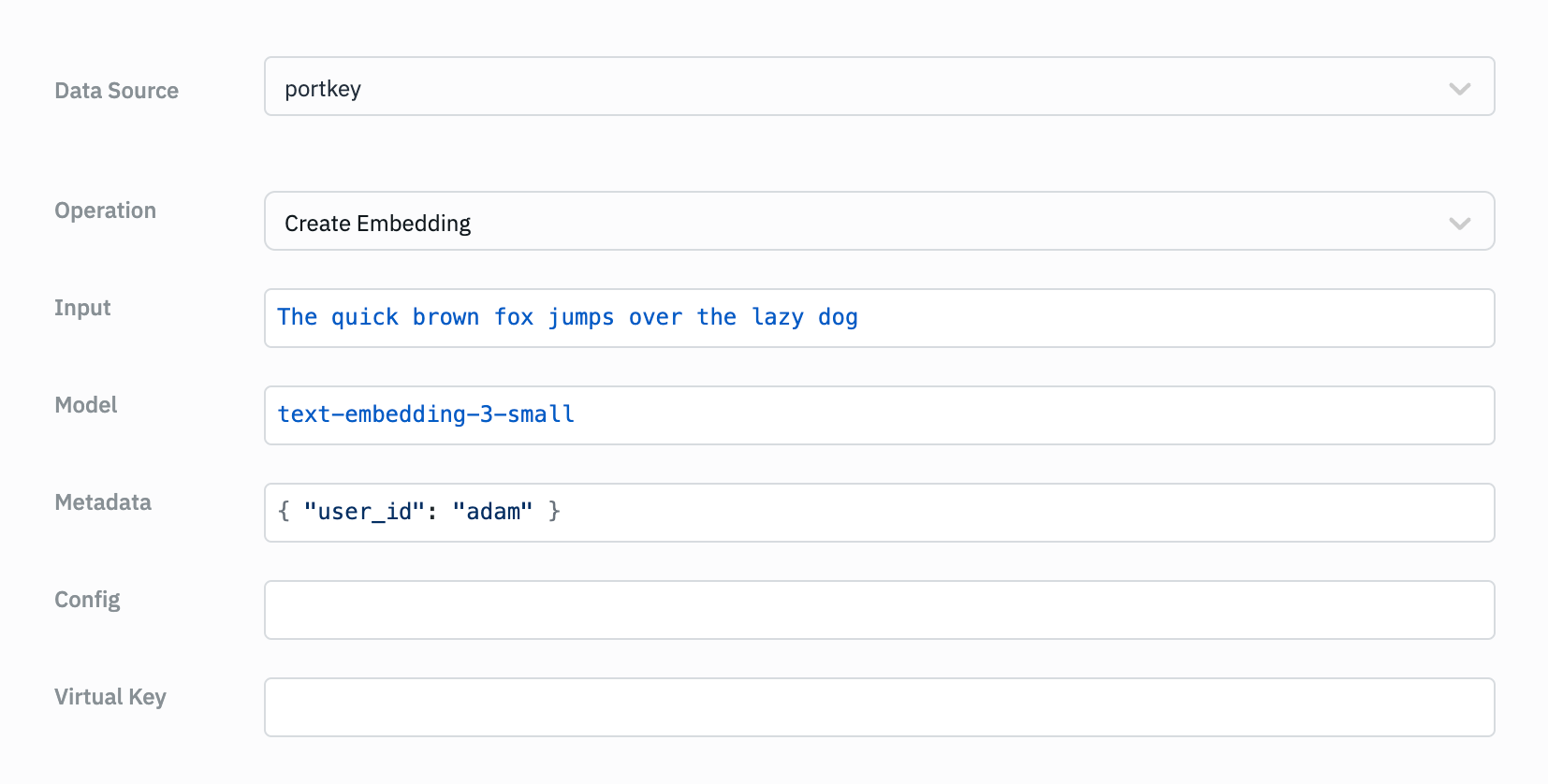
#### Create Embedding
Generates embeddings for a given input.
**Parameters:**
* **Input:** Text to create embeddings for.
* **Model:** The AI model to use for embeddings.
* **Metadata:** Additional metadata for the request.
```javascript Response Example theme={null}
{
"id": "chatcmpl-9w6D8jZciWVf1DzkgqNZK14KUvA4d",
"object": "chat.completion",
"created": 1723633926,
"model": "gpt-4o-mini-2024-07-18",
"choices": [
{
"index": 0,
"message": {
"role": "assistant",
"content": "The Industrial Revolution, starting in the late 18th century, transformed production from hand methods to machine-based processes, introducing new manufacturing techniques, steam power, and machine tools. It marked a shift from bio-fuels to coal, with the textile industry leading the way. This period resulted in significant population growth, increased average income, and improved living standards.",
"refusal": null
},
"logprobs": null,
"finish_reason": "stop"
}
],
"usage": {
"prompt_tokens": 145,
"completion_tokens": 71,
"total_tokens": 216
},
"system_fingerprint": "fp_48196bc67a"
}
```
#### Create Embedding
Generates embeddings for a given input.
**Parameters:**
* **Input:** Text to create embeddings for.
* **Model:** The AI model to use for embeddings.
* **Metadata:** Additional metadata for the request.
 ```javascript Response Example theme={null}
{
"object": "list",
"data": [
{
"object": "embedding",
"index": 0,
"embedding": [
-0.02083237,
-0.016892163,
-0.0045676464,
-0.05084554,
-0.025968939,
0.029597048,
0.029987168,
0.02907689,
0.0105982395,
-0.024356445,
-0.00935636,
0.0066352785,
0.034018397,
-0.042002838,
0.03856979,
-0.014681488,
...,
0.024707552
]
}
],
"model": "text-embedding-3-small",
"usage": {
"prompt_tokens": 9,
"total_tokens": 9
}
}
```
For all operations, you can optionally specify:
* **Config:** Configuration options for the request.
* **Virtual Key:** Override the default virtual key with a specific one.
## Troubleshooting
#### - Authentication Error
Double-check your **API key** and **configuration**.
#### - Slow Response
Adjust the **temperature** or **max\_tokens** to optimize performance.
#### - CORS Issues
Ensure your API settings allow access from **ToolJet's domain**.
```javascript Response Example theme={null}
{
"object": "list",
"data": [
{
"object": "embedding",
"index": 0,
"embedding": [
-0.02083237,
-0.016892163,
-0.0045676464,
-0.05084554,
-0.025968939,
0.029597048,
0.029987168,
0.02907689,
0.0105982395,
-0.024356445,
-0.00935636,
0.0066352785,
0.034018397,
-0.042002838,
0.03856979,
-0.014681488,
...,
0.024707552
]
}
],
"model": "text-embedding-3-small",
"usage": {
"prompt_tokens": 9,
"total_tokens": 9
}
}
```
For all operations, you can optionally specify:
* **Config:** Configuration options for the request.
* **Virtual Key:** Override the default virtual key with a specific one.
## Troubleshooting
#### - Authentication Error
Double-check your **API key** and **configuration**.
#### - Slow Response
Adjust the **temperature** or **max\_tokens** to optimize performance.
#### - CORS Issues
Ensure your API settings allow access from **ToolJet's domain**.