> ## Documentation Index
> Fetch the complete documentation index at: https://portkey-docs-add-third-party-integration-issues-fixes.mintlify.site/llms.txt
> Use this file to discover all available pages before exploring further.
# Promptfoo
> Portkey brings advanced **AI gateway** capabilities, full-stack **observability**, and **prompt management** + **versioning** to your **Promptfoo** projects. This document provides an overview of how to leverage the strengths of both the platforms to streamline your AI development workflow.
[**promptfoo**](https://promptfoo.dev/docs/intro) is an open source library (and CLI) for evaluating LLM output quality.
#### By using Portkey with Promptfoo you can:
1. [Manage, version, and collaborate on various prompts with Portkey and easily call them in Promptfoo](/integrations/libraries/promptfoo#id-1.-reference-prompts-from-portkey-in-promptfoo)
2. [Run Promptfoo on 1600+ LLMs, including locally or privately hosted LLMs](/integrations/libraries/promptfoo#id-2.-route-to-anthropic-google-groq-and-more)
3. [Log all requests, segment them as needed with custom metadata, and get granular cost, performance metrics for all Promptfoo runs](/integrations/libraries/promptfoo#id-3.-segment-requests-view-cost-and-performance-metrics)
4. [Avoid Promptfoo rate limits & leverage cache](/integrations/libraries/promptfoo#id-4.-avoid-promptfoo-rate-limits-and-leverage-cache)
Let’s see how these work!
## 1. Reference Prompts from Portkey in Promptfoo
1. Set the `PORTKEY_API_KEY` environment variable in your Promptfoo project
2. In your configuration YAML, use the `portkey://` prefix for your prompts, followed by your Portkey prompt ID.
For example:
```yaml theme={null}
prompts:
- portkey://pp-test-promp-669f48
providers:
- openai:gpt-3.5-turbo-0613
tests:
- vars:
topic: ...
```
Variables from your Promptfoo test cases will be automatically plugged into the Portkey prompt as variables. The resulting prompt will be rendered and returned to promptfoo, and used as the prompt for the test case.
Note that promptfoo does not follow the temperature, model, and other parameters set in Portkey. You must set them in the providers configuration yourself.
***
## 2. Route to Anthropic, Google, Groq, and More
1. Set the `PORTKEY_API_KEY` environment variable
2. While adding the provider in your config YAML, set the model name with `portkey` prefix (like `portkey:gpt-4o`)
3. And in the `config`param, set the relevant provider for the above chosen model with `portkeyProvider` (like `portkeyProvider:openai`)
### For Example, to Call OpenAI
```yaml theme={null}
providers:
id: portkey:gpt-4o
config:
portkeyProvider: openai
```
That's it! With this, all your Promptfoo calls will now start showing up on your Portkey dashboard.
### Let's now call `Anthropic`, `Google`, `Groq`, `Ollama`
```yaml theme={null}
providers:
id: portkey:claude-3-opus20240229
config:
portkeyProvider: anthropic
# You can also add your Anthropic API key to Portkey and pass the virtual key here
portkeyVirtualKey: ANTHROPIC_VIRTUAL_KEY
```
```yaml theme={null}
providers:
id: portkey:gemini-1.5-flash-latest
config:
portkeyProvider: google
# You can also add your Gemini API key to Portkey and pass the virtual key here
portkeyVirtualKey: GEMINI_VIRTUAL_KEY
```
```yaml theme={null}
providers:
id: portkey:llama3-8b-8192
config:
portkeyProvider: groq
# You can also add your Groq API key to Portkey and pass the virtual key here
portkeyVirtualKey: GROQ_VIRTUAL_KEY
```
```yaml theme={null}
providers:
id: portkey:llama3
config:
portkeyProvider: ollama
portkeyCustomHost: YOUR_OLLAMA_NGROK_URL
```
### Examples for `Azure OpenAI`, `AWS Bedrock`, `Google Vertex AI`
#### Using [Virtual Keys](/integrations/llms/azure-openai#id-2.-initialize-portkey-with-the-virtual-key)
```yaml theme={null}
providers:
id: portkey:xxx
config:
portkeyVirtualKey: YOUR_PORTKEY_AZURE_OPENAI_VIRTUAL_KEY
```
#### Without Using Virtual Keys
First, set the `AZURE_OPENAI_API_KEY` environment variable.
```yaml theme={null}
providers:
id: portkey:xxx
config:
portkeyProvider: azure-openai
portkeyAzureResourceName: AZURE_RESOURCE_NAME
portkeyAzureDeploymentId: AZURE_DEPLOYMENT_NAME
portkeyAzureApiVersion: AZURE_API_VERSION
```
#### Using Client Credentials (JSON Web Token)
You can generate a JSON web token for your client creds, and add it to the `AZURE_OPENAI_API_KEY` environment variable.
```yaml theme={null}
providers:
id: portkey:xxx
config:
portkeyProvider: azure-openai
portkeyAzureResourceName: AZURE_RESOURCE_NAME
portkeyAzureDeploymentId: AZURE_DEPLOYMENT_NAME
portkeyAzureApiVersion: AZURE_API_VERSION
# Pass your JSON Web Token with AZURE_OPENAI_API_KEY env var
portkeyForwardHeaders: [ "Authorization" ]
```
#### Using [Virtual Keys](/integrations/llms/aws-bedrock#id-2.-initialize-portkey-with-the-virtual-key)
```yaml theme={null}
providers:
id: portkey:anthropic.claude-3-sonnet-20240229-v1:0
config:
portkeyVirtualKey: YOUR_PORTKEY_AWS_BEDROCK_VIRTUAL_KEY
# If you're using AWS Security Token Service, you can set it here
awsSessionToken: "AWS_SESSION_TOKEN"
```
#### Without Using Virtual Keys
First, set the `AWS_ACCESS_KEY_ID` and `AWS_SECRET_ACCESS_KEY` env vars.
```yaml theme={null}
providers:
id: portkey:anthropic.claude-3-sonnet-20240229-v1:0
config:
portkeyProvider: bedrock
portkeyAwsRegion: "us-east-1"
portkeyAwsSecretAccessKey: ${AWS_SECRET_ACCESS_KEY}
portkeyAwsAccessKeyId: ${AWS_ACCESS_KEY_ID}
# You can also set AWS STS (Security Token Service)
awsSessionToken: "AWS_SESSION_TOKEN"
```
#### Using [Virtual Keys](/integrations/llms/vertex-ai#id-2.-initialize-portkey-with-the-virtual-key)
Set your Vertex AI access token with the `VERTEX_API_KEY` env var, and pass the rest of your Vertex AI details with Portkey virtual key.
```yaml theme={null}
providers:
id: portkey:gemini-1.5-flash-latest
config:
portkeyVirtualKey: YOUR_PORTKEY_GOOGLE_VERTEX_AI_VIRTUAL_KEY
```
#### Without Using Virtual Keys
First, set the `VERTEX_API_KEY`, `VERTEX_PROJECT_ID`, `VERTEX_REGION` env vars.
```yaml theme={null}
providers:
id: portkey:xxx
config:
portkeyProvider: vertex-ai
portkeyVertexProjectId: ${VERTEX_PROJECT_ID}
portkeyVertexRegion: ${VERTEX_REGION}
```
***
## 3. Segment Requests, View Cost & Performance Metrics
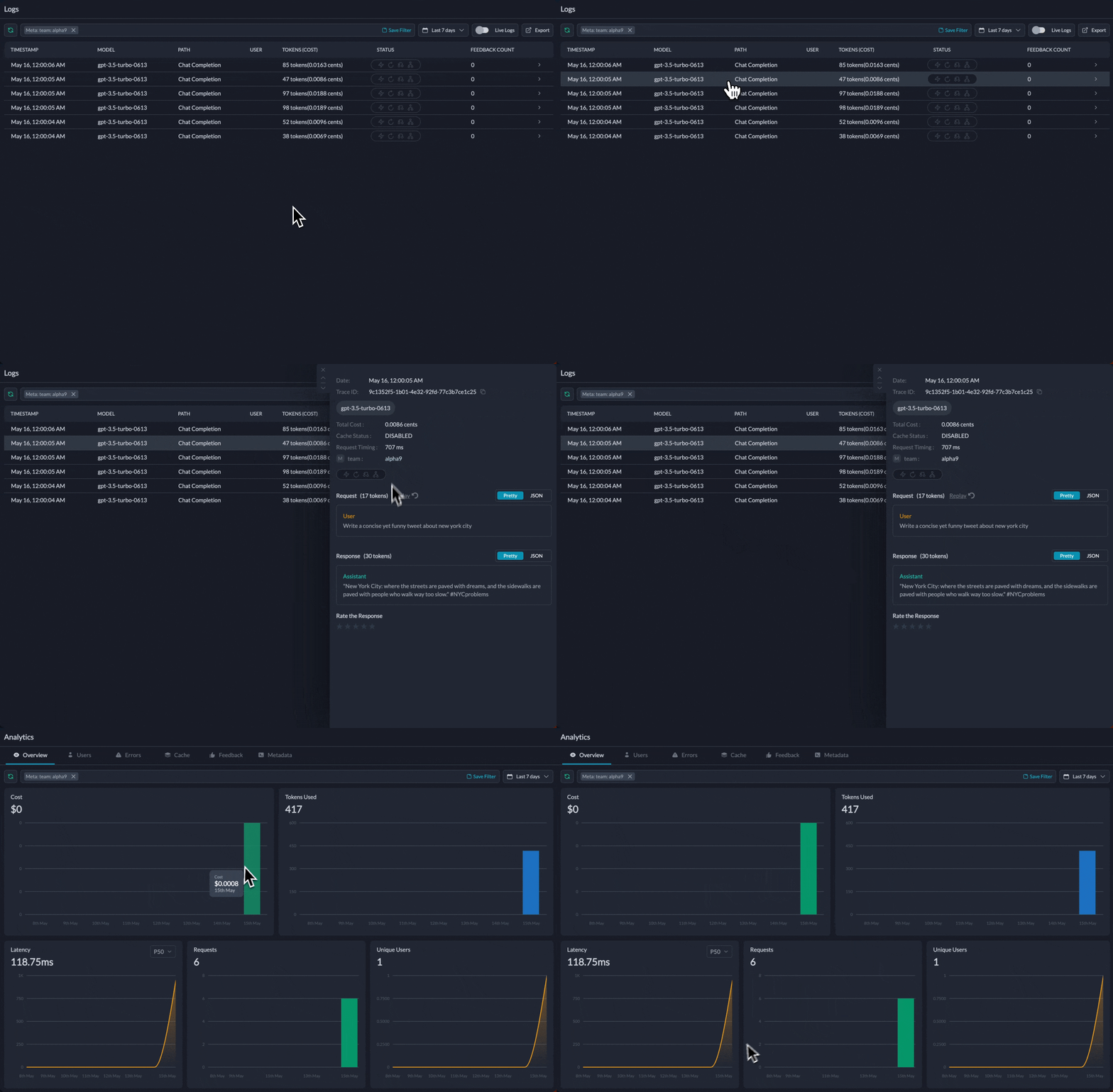
Portkey automatically logs all the key details about your requests, including cost, tokens used, response time, request and response bodies, and more.
Using Portkey, you can also send custom metadata with each of your requests to further segment your logs for better analytics. Similarly, you can also trace multiple requests to a single trace ID and filter or view them separately in Portkey logs.
```yaml theme={null}
providers:
id: portkey:claude-3-opus20240229
config:
portkeyVirtualKey: ANTHROPIC_VIRTUAL_KEY
portkeyMetadata:
team: alpha9
prompt: classification
portkeyTraceId: run_1
```
You can filter or group data by these metadata keys on Portkey dashboards.
 ***
## 4. Avoid Promptfoo Rate Limits & Leverage Cache
Since promptfoo can make a lot of calls very quickly, you can use a loadbalanced config in Portkey with cache enabled. You can pass the config header similar to virtual keys in promptfoo.
Here's a sample Config that you can save in the Portkey UI and get a respective config slug:
```json theme={null}
{
"cache": { "mode": "simple" },
"strategy": { "mode": "loadbalance" },
"targets": [
{ "virtual_key": "ACCOUNT_ONE" },
{ "virtual_key": "ACCOUNT_TWO" },
{ "virtual_key": "ACCOUNT_THREE" }
]
}
```
And then we can just add the saved Config's slug in the YAML:
```yaml theme={null}
providers:
id: portkey:claude-3-opus20240229
config:
portkeyVirtualKey: ANTHROPIC_VIRTUAL_KEY
portkeyConfig: PORTKEY_CONFIG_SLUG
```
***
## \[Roadmap] View the Results of Promptfoo Evals in Portkey
We’re building support to view the eval results of promptfoo in Portkey that will let you view the results of promptfoo evals within the feedback section of Portkey.
***
## 4. Avoid Promptfoo Rate Limits & Leverage Cache
Since promptfoo can make a lot of calls very quickly, you can use a loadbalanced config in Portkey with cache enabled. You can pass the config header similar to virtual keys in promptfoo.
Here's a sample Config that you can save in the Portkey UI and get a respective config slug:
```json theme={null}
{
"cache": { "mode": "simple" },
"strategy": { "mode": "loadbalance" },
"targets": [
{ "virtual_key": "ACCOUNT_ONE" },
{ "virtual_key": "ACCOUNT_TWO" },
{ "virtual_key": "ACCOUNT_THREE" }
]
}
```
And then we can just add the saved Config's slug in the YAML:
```yaml theme={null}
providers:
id: portkey:claude-3-opus20240229
config:
portkeyVirtualKey: ANTHROPIC_VIRTUAL_KEY
portkeyConfig: PORTKEY_CONFIG_SLUG
```
***
## \[Roadmap] View the Results of Promptfoo Evals in Portkey
We’re building support to view the eval results of promptfoo in Portkey that will let you view the results of promptfoo evals within the feedback section of Portkey.