> ## Documentation Index
> Fetch the complete documentation index at: https://portkey-docs-add-third-party-integration-issues-fixes.mintlify.site/llms.txt
> Use this file to discover all available pages before exploring further.
# OpenTelemetry Python SDK
> Direct OpenTelemetry instrumentation with full control over traces and intelligent gateway routing
The [OpenTelemetry SDK](https://opentelemetry.io/docs/languages/python/) provides direct, fine-grained control over instrumentation in your LLM applications. Unlike automatic instrumentation libraries, the SDK allows you to manually create spans and set attributes exactly where and how you need them.
Using the OpenTelemetry SDK directly with Portkey gives you complete control over what gets traced while benefiting from Portkey's intelligent gateway features like caching, fallbacks, and load balancing.
## Why OpenTelemetry SDK + Portkey?
Manually instrument exactly what you need with custom spans and attributes
Battle-tested OpenTelemetry standard used by enterprises worldwide
Add any metadata you need to traces for debugging and analysis
Portkey adds routing optimization and resilience to your LLM calls
## Quick Start
### Prerequisites
* Python
* Portkey account with API key
* OpenAI API key (or add it to [Model Catalog](/product/model-catalog))
### Step 1: Install Dependencies
Install the required packages:
```bash theme={null}
pip install opentelemetry-api opentelemetry-sdk opentelemetry-exporter-otlp-proto-http openai portkey-ai
```
### Step 2: Configure OpenTelemetry
Set up the tracer provider and OTLP exporter:
```python theme={null}
from opentelemetry import trace
from opentelemetry.sdk.trace import TracerProvider
from opentelemetry.sdk.trace.export import BatchSpanProcessor
from opentelemetry.exporter.otlp.proto.http.trace_exporter import OTLPSpanExporter
# Setup tracer provider
provider = TracerProvider()
trace.set_tracer_provider(provider)
# Configure OTLP exporter to send to Portkey
otlp_exporter = OTLPSpanExporter(
endpoint="https://api.portkey.ai/v1/otel/v1/traces",
headers={
"x-portkey-api-key": "YOUR_PORTKEY_API_KEY",
}
)
# Add batch span processor (recommended for production)
span_processor = BatchSpanProcessor(otlp_exporter)
provider.add_span_processor(span_processor)
# Get tracer
tracer = trace.get_tracer(__name__)
```
### Step 3: Configure Portkey Gateway
Set up the OpenAI client with Portkey's gateway:
```python theme={null}
from openai import OpenAI
from portkey_ai import createHeaders
# Use Portkey's gateway for intelligent routing
client = OpenAI(
api_key="PORTKEY_API_KEY",
base_url="https://api.portkey.ai/v1",
default_headers=createHeaders(
api_key="PORTKEY_API_KEY",
provider="@openai-prod" # Your AI Provider slug from Model Catalog
)
)
```
### Step 4: Create Instrumented Functions
Manually instrument your LLM calls with custom spans:
```python theme={null}
def generate_ai_response(input_text):
with tracer.start_as_current_span("OpenAI-Chat-Completion") as span:
# Add input attributes
span.set_attribute("input.value", input_text)
span.set_attribute("model.name", "gpt-4o")
span.set_attribute("temperature", 0.7)
span.set_attribute("gen_ai.prompt.0.role", "user")
span.set_attribute("gen_ai.prompt.0.content", input_text)
# Make the API call
response = client.chat.completions.create(
messages=[{"role": "user", "content": input_text}],
model="gpt-4o",
temperature=0.7,
)
# Add response attributes
output_content = response.choices[0].message.content
span.set_attribute("output.value", output_content)
span.set_attribute("gen_ai.completion.0.role", "assistant")
span.set_attribute("gen_ai.completion.0.content", output_content)
return output_content
```
## Complete Example
Here's a full working example:
```python theme={null}
from opentelemetry import trace
from opentelemetry.sdk.trace import TracerProvider
from opentelemetry.sdk.trace.export import BatchSpanProcessor
from opentelemetry.exporter.otlp.proto.http.trace_exporter import OTLPSpanExporter
from openai import OpenAI
from portkey_ai import createHeaders
# Step 1: Setup OpenTelemetry
provider = TracerProvider()
trace.set_tracer_provider(provider)
otlp_exporter = OTLPSpanExporter(
endpoint="https://api.portkey.ai/v1/otel/v1/traces",
headers={"x-portkey-api-key": "YOUR_PORTKEY_API_KEY"}
)
span_processor = BatchSpanProcessor(otlp_exporter)
provider.add_span_processor(span_processor)
tracer = trace.get_tracer(__name__)
# Step 2: Configure Portkey Gateway
client = OpenAI(
api_key="PORTKEY_API_KEY",
base_url="https://api.portkey.ai/v1",
default_headers=createHeaders(
api_key="PORTKEY_API_KEY",
provider="@openai-prod"
)
)
# Step 3: Create instrumented function
def generate_ai_response(input_text):
with tracer.start_as_current_span("OpenAI-Chat-Completion") as span:
# Set input attributes
span.set_attribute("input.value", input_text)
span.set_attribute("model.name", "gpt-4o")
span.set_attribute("temperature", 0.7)
# Make API call
response = client.chat.completions.create(
messages=[{"role": "user", "content": input_text}],
model="gpt-4o",
temperature=0.7,
)
# Set output attributes
output_content = response.choices[0].message.content
span.set_attribute("output.value", output_content)
return output_content
# Step 4: Use the instrumented function
if __name__ == "__main__":
input_text = "Explain the concept of AI in 50 words"
response = generate_ai_response(input_text)
print(response)
```
## Next Steps
Set up intelligent routing, fallbacks, and caching
Manage AI providers, credentials, and model access centrally
Analyze costs, performance, and usage patterns
Configure alerts for anomalies and performance issues
***
## See Your Traces in Action
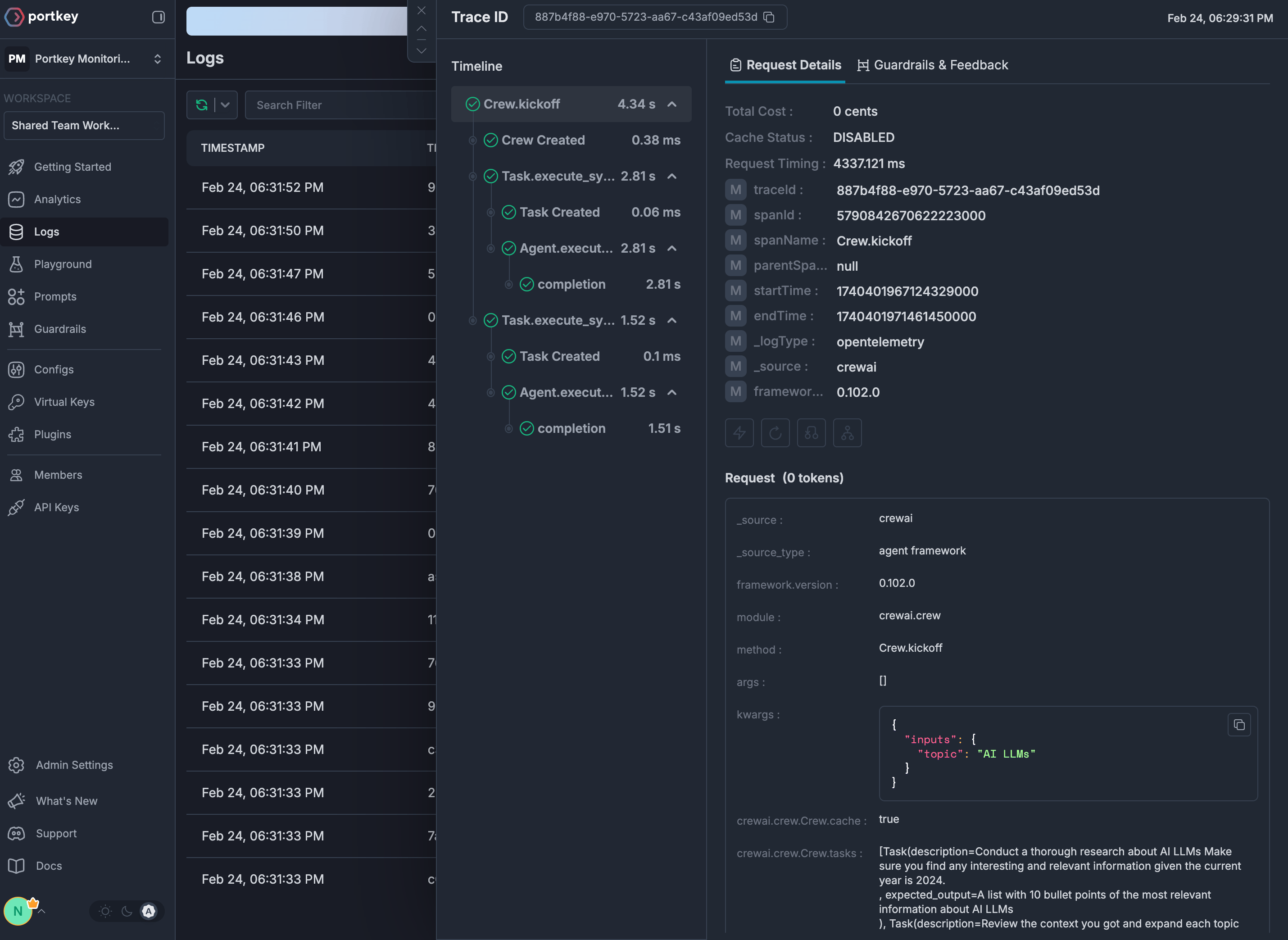
Once configured, navigate to the [Portkey dashboard](https://app.portkey.ai/logs) to see your custom OpenTelemetry traces enhanced with gateway intelligence: