> ## Documentation Index
> Fetch the complete documentation index at: https://portkey-docs-add-third-party-integration-issues-fixes.mintlify.site/llms.txt
> Use this file to discover all available pages before exploring further.
# Tavily Online Search
> Add live web context, citations, answers, and images to any LLM request with Tavily through Portkey.
[Tavily](https://tavily.com) is a search API built for LLMs and agents. Through Portkey, you can run Tavily as an input guardrail that searches the web before the model is called, then injects the returned context directly into the prompt. The result: any model behind Portkey can answer with fresher, better-grounded information without changing providers or retraining the model.
Explore Tavily's search API, docs, and account setup.
## What Tavily Online Search Does
Tavily Online Search runs before the model request is sent:
1. **A user sends a prompt** that needs current or web-grounded information.
2. **Portkey intercepts the request** in a `before_request_hook`.
3. **The Tavily plugin turns the prompt into a search query** and calls Tavily's search API.
4. **Tavily returns ranked web results** with optional answer text, raw content, images, favicons, and usage metadata.
5. **Portkey injects that search context into the request** and forwards the enriched prompt to the LLM.
If the request has no usable text, or Tavily returns no results, the request passes through without modification.
## Set Up Tavily Online Search in Portkey
### 1. Enable the Tavily Plugin
* Go to `Settings` → `Plugins` in Portkey.
* Find **Tavily** and click **Enable**.
* Paste your Tavily API key from the [Tavily dashboard](https://app.tavily.com).
* Save your plugin settings.
### 2. Create a Tavily Guardrail
* Open the `Guardrails` page and click `Create`.
* Search for **Tavily Online Search** and click `Add`.
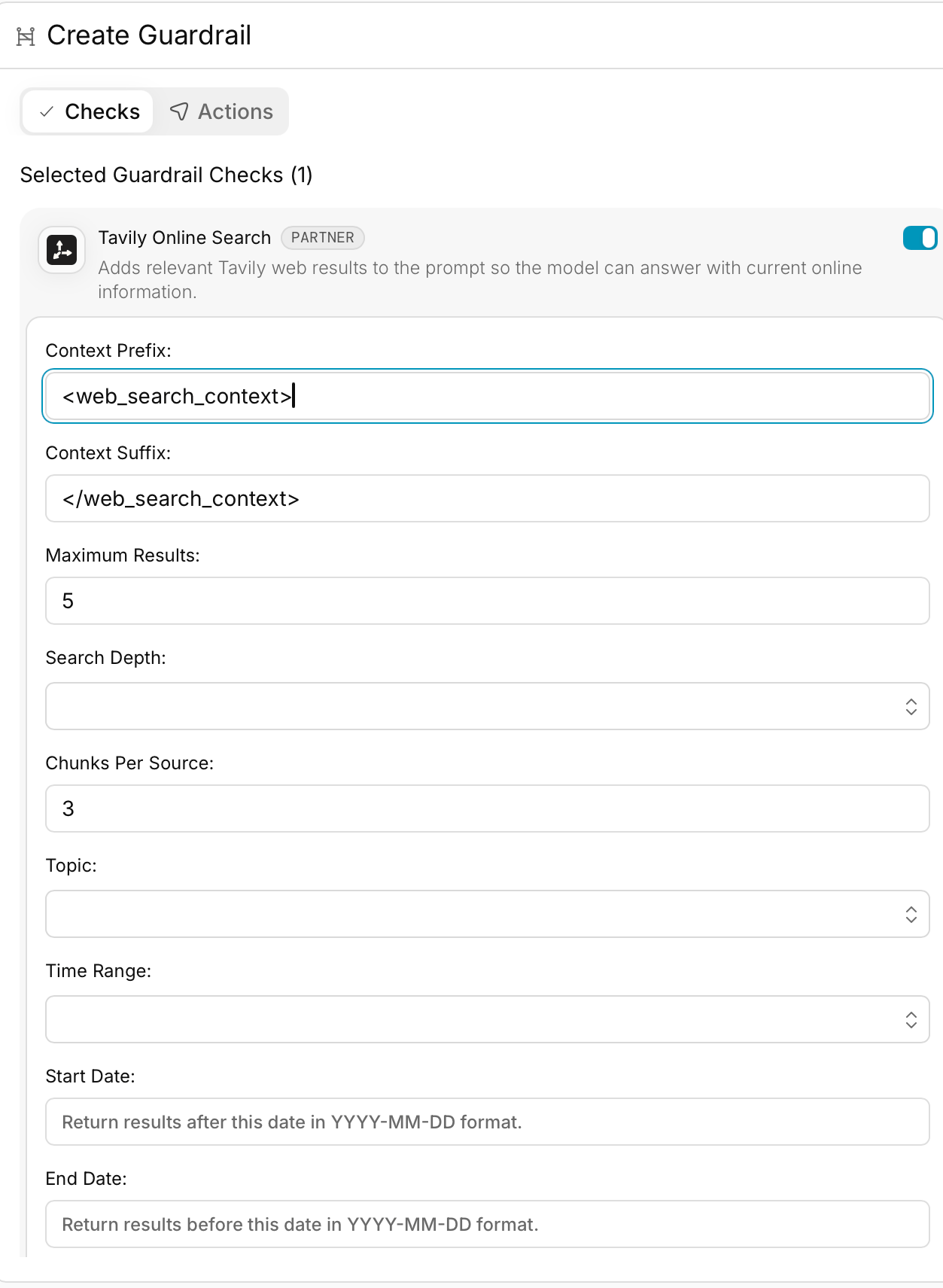
* Configure the search behavior for your use case.
#### Core settings
* **Context Prefix** — text inserted before Tavily search results. Default: ``
* **Context Suffix** — text inserted after Tavily search results. Default: ``
* **Max Results** — number of search results to inject. Default: `5`
* **Timeout** — max wait time in milliseconds for Tavily. Default: `30000`
#### Search tuning
* **Search Depth** — `basic`, `advanced`, `fast`, or `ultra-fast`
* **Chunks Per Source** — only applied when search depth is `advanced` or `fast`
* **Topic** — `general`, `news`, or `finance`
* **Auto Parameters** — let Tavily automatically choose `topic` and `search_depth`
* **Exact Match** — require exact query matching
#### Freshness and geography
* **Time Range** — `day`, `week`, `month`, `year` (or `d`, `w`, `m`, `y`)
* **Start Date / End Date** — `YYYY-MM-DD`
* **Country** — only applied when topic is `general`
#### Content enrichment
* **Include Answer** — `false`, `true`, `basic`, or `advanced`
* **Include Raw Content** — `false`, `true`, `markdown`, or `text`
* **Include Images** — return query-level and result-level images
* **Include Image Descriptions** — only used when images are enabled
* **Include Favicon** — attach source favicons
* **Include Usage** — return Tavily credit usage data
#### Domain and safety controls
* **Include Domains** — allowlist specific domains
* **Exclude Domains** — block specific domains
* **Safe Search** — only applied when search depth is `basic` or `advanced`
* Set any `actions` you want on the guardrail, then save it.
Guardrail Actions let you compose multiple checks into one workflow. Learn more [here](/product/guardrails#there-are-6-types-of-guardrail-actions).
 ### 3. Add the Guardrail to a Config
When you save the guardrail, Portkey gives you a Guardrail ID. Add that ID to the `input_guardrails` array in your Portkey config:
```json theme={null}
{
"input_guardrails": [
"your_tavily_guardrail_id"
]
}
```
Save the config and keep the Config ID handy for requests.
Tavily Online Search works only as an **input guardrail**. It enriches the prompt before the model call, so it runs through `before_request_hooks`, not `after_request_hooks`.
### 4. Use the Config in Requests
```js theme={null}
const portkey = new Portkey({
apiKey: "PORTKEY_API_KEY",
config: "pc-***" // Config with Tavily enabled
});
const response = await portkey.chat.completions.create({
model: "gpt-4",
messages: [
{
role: "user",
content: "Summarize today's AI infrastructure news."
}
]
});
```
```py theme={null}
portkey = Portkey(
api_key="PORTKEY_API_KEY",
config="pc-***" # Config with Tavily enabled
)
response = portkey.chat.completions.create(
model="gpt-4",
messages=[
{
"role": "user",
"content": "Summarize today's AI infrastructure news."
}
]
)
```
```js theme={null}
const openai = new OpenAI({
apiKey: "OPENAI_API_KEY",
baseURL: PORTKEY_GATEWAY_URL,
defaultHeaders: createHeaders({
apiKey: "PORTKEY_API_KEY",
config: "CONFIG_ID_WITH_TAVILY"
})
});
const response = await openai.chat.completions.create({
model: "gpt-4",
messages: [
{
role: "user",
content: "What are the latest developments in AI chips?"
}
]
});
```
## How Portkey Injects Tavily Results
For chat requests, Portkey appends the Tavily block to the existing `system` message. If there is no `system` message, it creates one. For completion requests, Portkey prepends the search block to the prompt.
A typical injected block looks like this:
```text theme={null}
Search Answer: Optional Tavily-generated answer
Query-Related Images:
Image 1: https://example.com/query-image.png
Description: Optional image description
[1] "Result title"
URL: https://example.com/article
Result summary or raw content
Result 1 Images:
Image 1: https://example.com/result-image.png
Description: Optional image description
[2] "Another result"
URL: https://example.com/another
Another summary...
```
The plugin formats each result with:
* title
* URL
* result text (`content`, or `raw_content` as fallback)
* optional score
* optional raw content
* optional favicon
* optional images
That makes Tavily useful both for lightweight prompt grounding and richer citation-style context.
## Best Practices
1. **Keep queries concise.** Aim to stay under 400 characters. Write search-style queries, not long prompt-style instructions.
2. **Break complex prompts into focused searches.** If the user asks about multiple topics, split them into narrower searches instead of overloading one query.
3. **Choose search depth deliberately.** Use `basic` for general-purpose search, `advanced` for specific detailed questions, `fast` when low latency matters, and `ultra-fast` only when speed is the top priority.
4. **Use `advanced` for high-precision retrieval.** When you need very specific information, pair `search_depth: advanced` with `chunks_per_source` to surface more relevant snippets from each source.
5. **Add freshness filters when recency matters.** For current events, use `topic: news` and combine it with `timeRange` or explicit `startDate` / `endDate` values.
6. **Keep domain filters short and relevant.** Use `includeDomains` or `excludeDomains` only when they improve result quality. Use `country` only for general-topic searches.
7. **Keep `maxResults` modest.** Higher values can reduce average result quality and add unnecessary prompt context.
8. **Use raw content sparingly.** `includeRawContent` can improve grounding, but it also increases prompt size. When you need deeper extraction, first discover sources with search, then fetch the chosen pages separately.
9. **Use `autoParameters` carefully.** It helps with broad or ambiguous queries, but it may choose more expensive search settings unless you override them.
10. **Use exact match only for verbatim names or phrases.** When you need exact retrieval, wrap the phrase in quotes and enable `exactMatch`.
11. **Pair Tavily with output guardrails.** Tavily improves input grounding; output guardrails help validate the final model response.
## Monitoring and Logs
Tavily-enriched requests are visible in the Portkey dashboard. You can inspect:
* whether Tavily was triggered for the request
* the search query that was generated
* the sources returned by Tavily
* how much extra prompt context was added
* usage and credit metadata when `includeUsage` is enabled
## Frequently Asked Questions
Yes. Tavily runs at the gateway layer, so the same search workflow can be used with OpenAI, Anthropic, Google, Mistral, self-hosted models, and any other provider available through Portkey.
The request still goes through to the model, but without added search context.
Tavily is designed for current web retrieval. For breaking topics and news workflows, you can tighten freshness further with `timeRange`, `startDate`, and `endDate`.
Use `autoParameters` when you want Tavily to choose the best topic and depth automatically. Leave it off when you need predictable behavior or tighter control over latency and cost.
If image retrieval is enabled, Portkey can inject query-level images and result-level images into the search context. The plugin limits prompt image injection to the first five valid images.
Native browsing is usually tied to one provider or model family. Tavily on Portkey gives you a retrieval layer that stays consistent across providers, with configurable depth, filtering, formatting, and observability.
## Get Support
If you run into issues with the Portkey setup, reach out on the [community forum](https://discord.gg/portkey-llms-in-prod-1143393887742861333). For Tavily account, billing, or API-specific questions, use the Tavily support paths in your [dashboard](https://app.tavily.com).
## Learn More
* [Tavily API Documentation](https://docs.tavily.com)
* [Tavily Search API Reference](https://docs.tavily.com/documentation/api-reference/endpoint/search)
* [Portkey Guardrails Overview](/product/guardrails)
### 3. Add the Guardrail to a Config
When you save the guardrail, Portkey gives you a Guardrail ID. Add that ID to the `input_guardrails` array in your Portkey config:
```json theme={null}
{
"input_guardrails": [
"your_tavily_guardrail_id"
]
}
```
Save the config and keep the Config ID handy for requests.
Tavily Online Search works only as an **input guardrail**. It enriches the prompt before the model call, so it runs through `before_request_hooks`, not `after_request_hooks`.
### 4. Use the Config in Requests
```js theme={null}
const portkey = new Portkey({
apiKey: "PORTKEY_API_KEY",
config: "pc-***" // Config with Tavily enabled
});
const response = await portkey.chat.completions.create({
model: "gpt-4",
messages: [
{
role: "user",
content: "Summarize today's AI infrastructure news."
}
]
});
```
```py theme={null}
portkey = Portkey(
api_key="PORTKEY_API_KEY",
config="pc-***" # Config with Tavily enabled
)
response = portkey.chat.completions.create(
model="gpt-4",
messages=[
{
"role": "user",
"content": "Summarize today's AI infrastructure news."
}
]
)
```
```js theme={null}
const openai = new OpenAI({
apiKey: "OPENAI_API_KEY",
baseURL: PORTKEY_GATEWAY_URL,
defaultHeaders: createHeaders({
apiKey: "PORTKEY_API_KEY",
config: "CONFIG_ID_WITH_TAVILY"
})
});
const response = await openai.chat.completions.create({
model: "gpt-4",
messages: [
{
role: "user",
content: "What are the latest developments in AI chips?"
}
]
});
```
## How Portkey Injects Tavily Results
For chat requests, Portkey appends the Tavily block to the existing `system` message. If there is no `system` message, it creates one. For completion requests, Portkey prepends the search block to the prompt.
A typical injected block looks like this:
```text theme={null}
Search Answer: Optional Tavily-generated answer
Query-Related Images:
Image 1: https://example.com/query-image.png
Description: Optional image description
[1] "Result title"
URL: https://example.com/article
Result summary or raw content
Result 1 Images:
Image 1: https://example.com/result-image.png
Description: Optional image description
[2] "Another result"
URL: https://example.com/another
Another summary...
```
The plugin formats each result with:
* title
* URL
* result text (`content`, or `raw_content` as fallback)
* optional score
* optional raw content
* optional favicon
* optional images
That makes Tavily useful both for lightweight prompt grounding and richer citation-style context.
## Best Practices
1. **Keep queries concise.** Aim to stay under 400 characters. Write search-style queries, not long prompt-style instructions.
2. **Break complex prompts into focused searches.** If the user asks about multiple topics, split them into narrower searches instead of overloading one query.
3. **Choose search depth deliberately.** Use `basic` for general-purpose search, `advanced` for specific detailed questions, `fast` when low latency matters, and `ultra-fast` only when speed is the top priority.
4. **Use `advanced` for high-precision retrieval.** When you need very specific information, pair `search_depth: advanced` with `chunks_per_source` to surface more relevant snippets from each source.
5. **Add freshness filters when recency matters.** For current events, use `topic: news` and combine it with `timeRange` or explicit `startDate` / `endDate` values.
6. **Keep domain filters short and relevant.** Use `includeDomains` or `excludeDomains` only when they improve result quality. Use `country` only for general-topic searches.
7. **Keep `maxResults` modest.** Higher values can reduce average result quality and add unnecessary prompt context.
8. **Use raw content sparingly.** `includeRawContent` can improve grounding, but it also increases prompt size. When you need deeper extraction, first discover sources with search, then fetch the chosen pages separately.
9. **Use `autoParameters` carefully.** It helps with broad or ambiguous queries, but it may choose more expensive search settings unless you override them.
10. **Use exact match only for verbatim names or phrases.** When you need exact retrieval, wrap the phrase in quotes and enable `exactMatch`.
11. **Pair Tavily with output guardrails.** Tavily improves input grounding; output guardrails help validate the final model response.
## Monitoring and Logs
Tavily-enriched requests are visible in the Portkey dashboard. You can inspect:
* whether Tavily was triggered for the request
* the search query that was generated
* the sources returned by Tavily
* how much extra prompt context was added
* usage and credit metadata when `includeUsage` is enabled
## Frequently Asked Questions
Yes. Tavily runs at the gateway layer, so the same search workflow can be used with OpenAI, Anthropic, Google, Mistral, self-hosted models, and any other provider available through Portkey.
The request still goes through to the model, but without added search context.
Tavily is designed for current web retrieval. For breaking topics and news workflows, you can tighten freshness further with `timeRange`, `startDate`, and `endDate`.
Use `autoParameters` when you want Tavily to choose the best topic and depth automatically. Leave it off when you need predictable behavior or tighter control over latency and cost.
If image retrieval is enabled, Portkey can inject query-level images and result-level images into the search context. The plugin limits prompt image injection to the first five valid images.
Native browsing is usually tied to one provider or model family. Tavily on Portkey gives you a retrieval layer that stays consistent across providers, with configurable depth, filtering, formatting, and observability.
## Get Support
If you run into issues with the Portkey setup, reach out on the [community forum](https://discord.gg/portkey-llms-in-prod-1143393887742861333). For Tavily account, billing, or API-specific questions, use the Tavily support paths in your [dashboard](https://app.tavily.com).
## Learn More
* [Tavily API Documentation](https://docs.tavily.com)
* [Tavily Search API Reference](https://docs.tavily.com/documentation/api-reference/endpoint/search)
* [Portkey Guardrails Overview](/product/guardrails)