> ## Documentation Index
> Fetch the complete documentation index at: https://portkey-docs-add-third-party-integration-issues-fixes.mintlify.site/llms.txt
> Use this file to discover all available pages before exploring further.
# Any OpenAI-Compatible Project
> Add Portkey to any OpenAI-compatible app—just change 2 settings.
Portkey works with any tool or application that supports OpenAI-compatible APIs. Add enterprise features—observability, reliability, cost controls—with just 2 configuration changes.
## Quick Start
Find your project's OpenAI settings and update:
1. **Base URL:** `https://api.portkey.ai/v1`
2. **API Key:** Your Portkey API key
That's it! Your app now routes through Portkey.
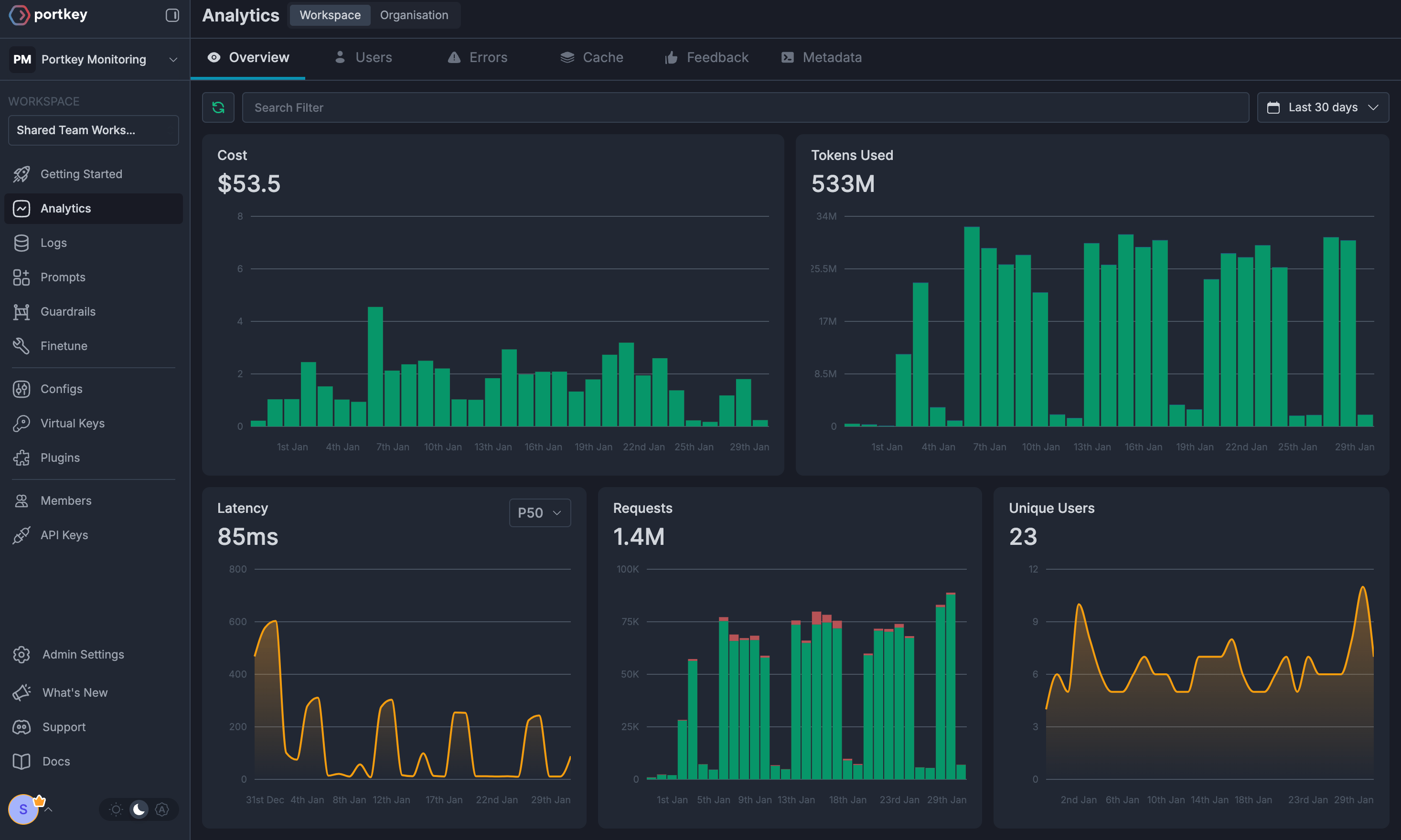 You now get:
* ✅ Full observability (costs, latency, logs)
* ✅ Access to 250+ LLM providers
* ✅ Automatic fallbacks and retries
* ✅ Budget controls per team/project
## Why Add Portkey?
Every request logged with costs, latency, tokens. Track usage across teams.
Switch between OpenAI, Anthropic, Google, and 250+ models without code changes.
Automatic fallbacks, retries, load balancing—configured once, works everywhere.
Budget limits per team. Rate limiting. Centralized credential management.
## Setup
### 1. Add Provider in Model Catalog
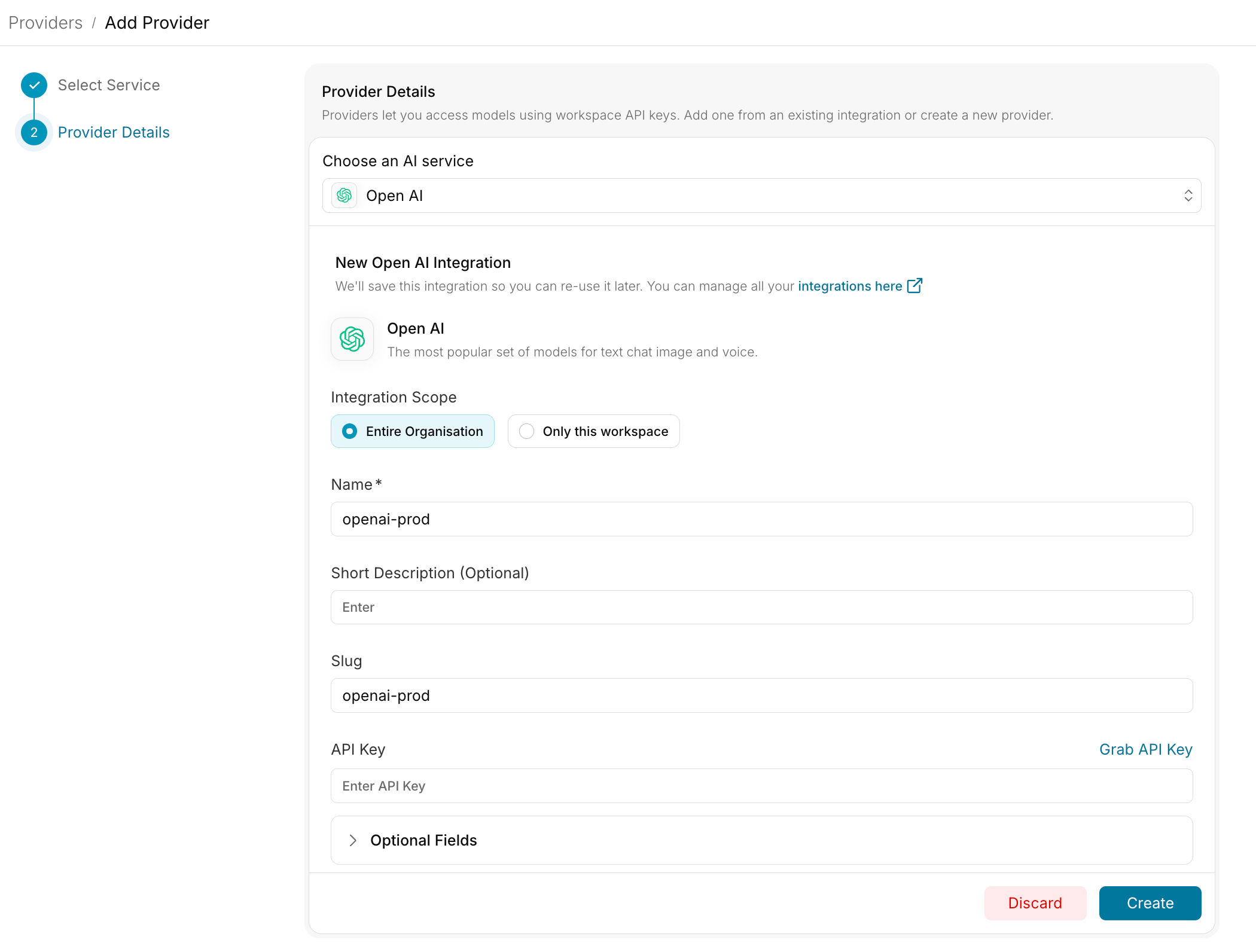
1. Go to [**Model Catalog → Add Provider**](https://app.portkey.ai/model-catalog/providers)
2. Select your provider (OpenAI, Anthropic, Google, etc.)
3. Choose existing credentials or create new by entering your API keys
4. Name your provider (e.g., `openai-prod`)
Your provider slug will be **`@openai-prod`** (or whatever you named it).
Set up budgets, rate limits, and manage credentials
### 2. Get Portkey API Key
Create your Portkey API key at [app.portkey.ai/api-keys](https://app.portkey.ai/api-keys)
### 3. Configure Your Application
Most OpenAI-compatible apps have settings for:
**Base URL / Endpoint**
```
https://api.portkey.ai/v1
```
**API Key**
```
Your Portkey API Key (from step 2)
```
**Model** (if configurable)
```
@openai-prod/gpt-4o
```
If your app requires the OpenAI format (just model name), use a Portkey config with your default model.
## Common Integration Patterns
### Pattern 1: Direct Configuration (Recommended)
If your app allows custom base URL and API key:
```
Base URL: https://api.portkey.ai/v1
API Key: PORTKEY_API_KEY
Model: @openai-prod/gpt-4o
```
### Pattern 2: With Config
If your app only accepts model names like `gpt-4o`:
1. Create a config in [Portkey dashboard](https://app.portkey.ai/configs):
```json theme={null}
{
"override_params": {
"model": "@openai-prod/gpt-4o"
}
}
```
2. Use the config in your app:
```
Base URL: https://api.portkey.ai/v1
API Key: PORTKEY_API_KEY
Model: gpt-4o (the config will override this)
```
Add config to API key defaults or pass via header.
### Pattern 3: Environment Variables
Many apps use environment variables:
```bash theme={null}
OPENAI_API_BASE=https://api.portkey.ai/v1
OPENAI_API_KEY=PORTKEY_API_KEY
OPENAI_MODEL=@openai-prod/gpt-4o
```
## Switching Providers
Change the model string to switch providers:
```
@openai-prod/gpt-4o # OpenAI
@anthropic-prod/claude-sonnet-4 # Anthropic
@google-prod/gemini-2.0-flash # Google
```
All without changing your application code!
## Advanced Features via Configs
For production features like fallbacks, caching, and load balancing:
1. Create a config in [Portkey dashboard](https://app.portkey.ai/configs)
2. Attach it to your API key defaults
3. Or pass via header: `x-portkey-config: your-config-id`
**Example config with fallbacks:**
```json theme={null}
{
"strategy": {"mode": "fallback"},
"targets": [
{"override_params": {"model": "@openai-prod/gpt-4o"}},
{"override_params": {"model": "@anthropic-prod/claude-sonnet-4"}}
]
}
```
Fallbacks, retries, caching, load balancing, and more
# 3. Set Up Enterprise Governance
**Why Enterprise Governance?**
* **Cost Management**: Controlling and tracking AI spending across teams
* **Access Control**: Managing team access and workspaces
* **Usage Analytics**: Understanding how AI is being used across the organization
* **Security & Compliance**: Maintaining enterprise security standards
* **Reliability**: Ensuring consistent service across all users
* **Model Management**: Managing what models are being used in your setup
Portkey adds a comprehensive governance layer to address these enterprise needs.
**Enterprise Implementation Guide**
### Step 1: Implement Budget Controls & Rate Limits
Model Catalog enables you to have granular control over LLM access at the team/department level. This helps you:
* Set up [budget limits](/product/model-catalog/budget-limits)
* Prevent unexpected usage spikes using Rate limits
* Track departmental spending
#### Setting Up Department-Specific Controls:
1. Navigate to [Model Catalog](https://app.portkey.ai/model-catalog) in Portkey dashboard
2. Create new Provider for each engineering team with budget limits and rate limits
3. Configure department-specific limits
You now get:
* ✅ Full observability (costs, latency, logs)
* ✅ Access to 250+ LLM providers
* ✅ Automatic fallbacks and retries
* ✅ Budget controls per team/project
## Why Add Portkey?
Every request logged with costs, latency, tokens. Track usage across teams.
Switch between OpenAI, Anthropic, Google, and 250+ models without code changes.
Automatic fallbacks, retries, load balancing—configured once, works everywhere.
Budget limits per team. Rate limiting. Centralized credential management.
## Setup
### 1. Add Provider in Model Catalog
1. Go to [**Model Catalog → Add Provider**](https://app.portkey.ai/model-catalog/providers)
2. Select your provider (OpenAI, Anthropic, Google, etc.)
3. Choose existing credentials or create new by entering your API keys
4. Name your provider (e.g., `openai-prod`)
Your provider slug will be **`@openai-prod`** (or whatever you named it).
Set up budgets, rate limits, and manage credentials
### 2. Get Portkey API Key
Create your Portkey API key at [app.portkey.ai/api-keys](https://app.portkey.ai/api-keys)
### 3. Configure Your Application
Most OpenAI-compatible apps have settings for:
**Base URL / Endpoint**
```
https://api.portkey.ai/v1
```
**API Key**
```
Your Portkey API Key (from step 2)
```
**Model** (if configurable)
```
@openai-prod/gpt-4o
```
If your app requires the OpenAI format (just model name), use a Portkey config with your default model.
## Common Integration Patterns
### Pattern 1: Direct Configuration (Recommended)
If your app allows custom base URL and API key:
```
Base URL: https://api.portkey.ai/v1
API Key: PORTKEY_API_KEY
Model: @openai-prod/gpt-4o
```
### Pattern 2: With Config
If your app only accepts model names like `gpt-4o`:
1. Create a config in [Portkey dashboard](https://app.portkey.ai/configs):
```json theme={null}
{
"override_params": {
"model": "@openai-prod/gpt-4o"
}
}
```
2. Use the config in your app:
```
Base URL: https://api.portkey.ai/v1
API Key: PORTKEY_API_KEY
Model: gpt-4o (the config will override this)
```
Add config to API key defaults or pass via header.
### Pattern 3: Environment Variables
Many apps use environment variables:
```bash theme={null}
OPENAI_API_BASE=https://api.portkey.ai/v1
OPENAI_API_KEY=PORTKEY_API_KEY
OPENAI_MODEL=@openai-prod/gpt-4o
```
## Switching Providers
Change the model string to switch providers:
```
@openai-prod/gpt-4o # OpenAI
@anthropic-prod/claude-sonnet-4 # Anthropic
@google-prod/gemini-2.0-flash # Google
```
All without changing your application code!
## Advanced Features via Configs
For production features like fallbacks, caching, and load balancing:
1. Create a config in [Portkey dashboard](https://app.portkey.ai/configs)
2. Attach it to your API key defaults
3. Or pass via header: `x-portkey-config: your-config-id`
**Example config with fallbacks:**
```json theme={null}
{
"strategy": {"mode": "fallback"},
"targets": [
{"override_params": {"model": "@openai-prod/gpt-4o"}},
{"override_params": {"model": "@anthropic-prod/claude-sonnet-4"}}
]
}
```
Fallbacks, retries, caching, load balancing, and more
# 3. Set Up Enterprise Governance
**Why Enterprise Governance?**
* **Cost Management**: Controlling and tracking AI spending across teams
* **Access Control**: Managing team access and workspaces
* **Usage Analytics**: Understanding how AI is being used across the organization
* **Security & Compliance**: Maintaining enterprise security standards
* **Reliability**: Ensuring consistent service across all users
* **Model Management**: Managing what models are being used in your setup
Portkey adds a comprehensive governance layer to address these enterprise needs.
**Enterprise Implementation Guide**
### Step 1: Implement Budget Controls & Rate Limits
Model Catalog enables you to have granular control over LLM access at the team/department level. This helps you:
* Set up [budget limits](/product/model-catalog/budget-limits)
* Prevent unexpected usage spikes using Rate limits
* Track departmental spending
#### Setting Up Department-Specific Controls:
1. Navigate to [Model Catalog](https://app.portkey.ai/model-catalog) in Portkey dashboard
2. Create new Provider for each engineering team with budget limits and rate limits
3. Configure department-specific limits
 ### Step 2: Define Model Access Rules
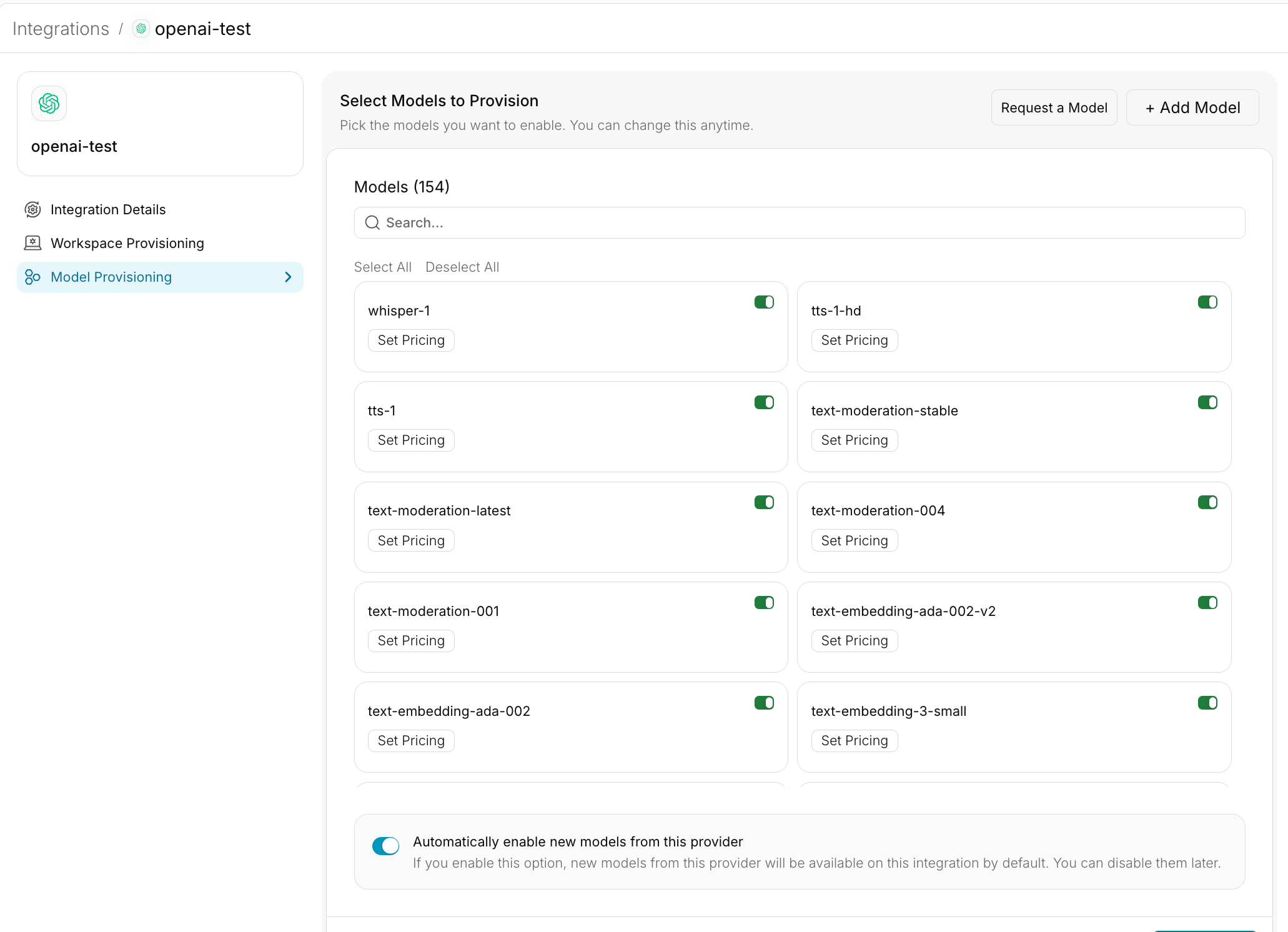
As your AI usage scales, controlling which teams can access specific models becomes crucial. You can simply manage AI models in your org by provisioning model at the top integration level.
### Step 2: Define Model Access Rules
As your AI usage scales, controlling which teams can access specific models becomes crucial. You can simply manage AI models in your org by provisioning model at the top integration level.
 Portkey allows you to control your routing logic very simply with it's Configs feature. Portkey Configs provide this control layer with things like:
* **Data Protection**: Implement guardrails for sensitive code and data
* **Reliability Controls**: Add fallbacks, load-balance, retry and smart conditional routing logic
* **Caching**: Implement Simple and Semantic Caching. and more....
#### Example Configuration:
Here's a basic configuration to load-balance requests to OpenAI and Anthropic:
```json theme={null}
{
"strategy": {
"mode": "load-balance"
},
"targets": [
{
"override_params": {
"model": "@YOUR_OPENAI_PROVIDER_SLUG/gpt-model"
}
},
{
"override_params": {
"model": "@YOUR_ANTHROPIC_PROVIDER/claude-sonnet-model"
}
}
]
}
```
Create your config on the [Configs page](https://app.portkey.ai/configs) in your Portkey dashboard. You'll need the config ID for connecting.
Configs can be updated anytime to adjust controls without affecting running applications.
### Step 3: Implement Access Controls
Create User-specific API keys that automatically:
* Track usage per developer/team with the help of metadata
* Apply appropriate configs to route requests
* Collect relevant metadata to filter logs
* Enforce access permissions
Create API keys through:
* [Portkey App](https://app.portkey.ai/)
* [API Key Management API](/api-reference/admin-api/control-plane/api-keys/create-api-key)
Example using Python SDK:
```python theme={null}
from portkey_ai import Portkey
portkey = Portkey(api_key="YOUR_ADMIN_API_KEY")
api_key = portkey.api_keys.create(
name="frontend-engineering",
type="organisation",
workspace_id="YOUR_WORKSPACE_ID",
defaults={
"config_id": "your-config-id",
"metadata": {
"environment": "development",
"department": "engineering",
"team": "frontend"
}
},
scopes=["logs.view", "configs.read"]
)
```
For detailed key management instructions, see our [API Keys documentation](/api-reference/admin-api/control-plane/api-keys/create-api-key).
### Step 4: Deploy & Monitor
After distributing API keys to your engineering teams, your enterprise-ready setup is ready to go. Each developer can now use their designated API keys with appropriate access levels and budget controls.
Apply your governance setup using the integration steps from earlier sections
Monitor usage in Portkey dashboard:
* Cost tracking by engineering team
* Model usage patterns for AI agent tasks
* Request volumes
* Error rates and debugging logs
### Enterprise Features Now Available
**You now have:**
* Departmental budget controls
* Model access governance
* Usage tracking & attribution
* Security guardrails
* Reliability features
# Portkey Features
Now that you have an enterprise-grade setup, let's explore the comprehensive features Portkey provides to ensure secure, efficient, and cost-effective AI operations.
### 1. Comprehensive Metrics
Using Portkey you can track 40+ key metrics including cost, token usage, response time, and performance across all your LLM providers in real time. You can also filter these metrics based on custom metadata that you can set in your configs. Learn more about metadata here.
### 2. Advanced Logs
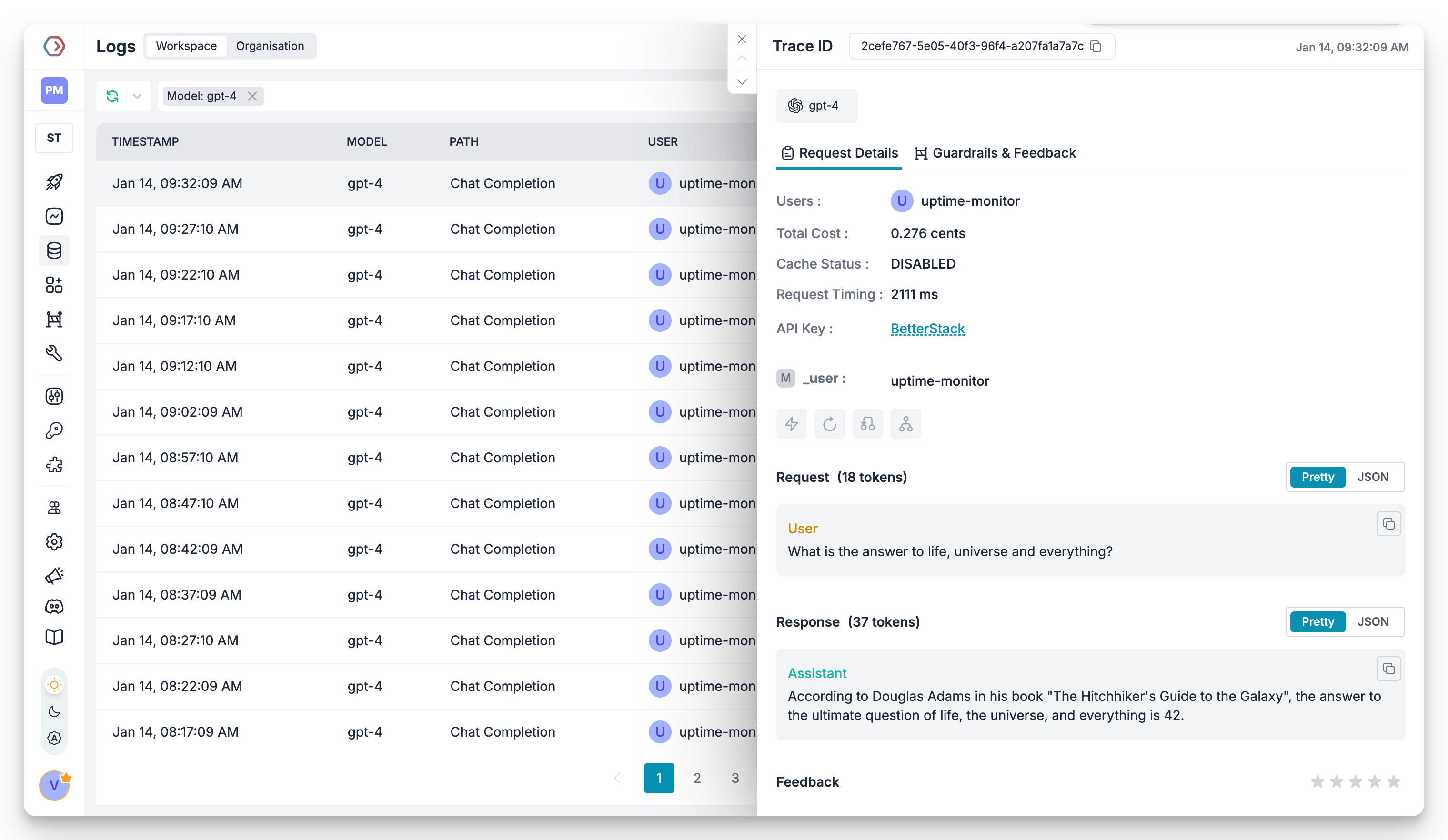
Portkey's logging dashboard provides detailed logs for every request made to your LLMs. These logs include:
* Complete request and response tracking
* Metadata tags for filtering
* Cost attribution and much more...
Portkey allows you to control your routing logic very simply with it's Configs feature. Portkey Configs provide this control layer with things like:
* **Data Protection**: Implement guardrails for sensitive code and data
* **Reliability Controls**: Add fallbacks, load-balance, retry and smart conditional routing logic
* **Caching**: Implement Simple and Semantic Caching. and more....
#### Example Configuration:
Here's a basic configuration to load-balance requests to OpenAI and Anthropic:
```json theme={null}
{
"strategy": {
"mode": "load-balance"
},
"targets": [
{
"override_params": {
"model": "@YOUR_OPENAI_PROVIDER_SLUG/gpt-model"
}
},
{
"override_params": {
"model": "@YOUR_ANTHROPIC_PROVIDER/claude-sonnet-model"
}
}
]
}
```
Create your config on the [Configs page](https://app.portkey.ai/configs) in your Portkey dashboard. You'll need the config ID for connecting.
Configs can be updated anytime to adjust controls without affecting running applications.
### Step 3: Implement Access Controls
Create User-specific API keys that automatically:
* Track usage per developer/team with the help of metadata
* Apply appropriate configs to route requests
* Collect relevant metadata to filter logs
* Enforce access permissions
Create API keys through:
* [Portkey App](https://app.portkey.ai/)
* [API Key Management API](/api-reference/admin-api/control-plane/api-keys/create-api-key)
Example using Python SDK:
```python theme={null}
from portkey_ai import Portkey
portkey = Portkey(api_key="YOUR_ADMIN_API_KEY")
api_key = portkey.api_keys.create(
name="frontend-engineering",
type="organisation",
workspace_id="YOUR_WORKSPACE_ID",
defaults={
"config_id": "your-config-id",
"metadata": {
"environment": "development",
"department": "engineering",
"team": "frontend"
}
},
scopes=["logs.view", "configs.read"]
)
```
For detailed key management instructions, see our [API Keys documentation](/api-reference/admin-api/control-plane/api-keys/create-api-key).
### Step 4: Deploy & Monitor
After distributing API keys to your engineering teams, your enterprise-ready setup is ready to go. Each developer can now use their designated API keys with appropriate access levels and budget controls.
Apply your governance setup using the integration steps from earlier sections
Monitor usage in Portkey dashboard:
* Cost tracking by engineering team
* Model usage patterns for AI agent tasks
* Request volumes
* Error rates and debugging logs
### Enterprise Features Now Available
**You now have:**
* Departmental budget controls
* Model access governance
* Usage tracking & attribution
* Security guardrails
* Reliability features
# Portkey Features
Now that you have an enterprise-grade setup, let's explore the comprehensive features Portkey provides to ensure secure, efficient, and cost-effective AI operations.
### 1. Comprehensive Metrics
Using Portkey you can track 40+ key metrics including cost, token usage, response time, and performance across all your LLM providers in real time. You can also filter these metrics based on custom metadata that you can set in your configs. Learn more about metadata here.
### 2. Advanced Logs
Portkey's logging dashboard provides detailed logs for every request made to your LLMs. These logs include:
* Complete request and response tracking
* Metadata tags for filtering
* Cost attribution and much more...
 ### 3. Unified Access to 1600+ LLMs
You can easily switch between 1600+ LLMs. Call various LLMs such as Anthropic, Gemini, Mistral, Azure OpenAI, Google Vertex AI, AWS Bedrock, and many more by simply changing the `provider` slug in your default `config` object.
### 4. Advanced Metadata Tracking
Using Portkey, you can add custom metadata to your LLM requests for detailed tracking and analytics. Use metadata tags to filter logs, track usage, and attribute costs across departments and teams.
### 5. Enterprise Access Management
Set and manage spending limits across teams and departments. Control costs with granular budget limits and usage tracking.
Enterprise-grade SSO integration with support for SAML 2.0, Okta, Azure AD, and custom providers for secure authentication.
Hierarchical organization structure with workspaces, teams, and role-based access control for enterprise-scale deployments.
Comprehensive access control rules and detailed audit logging for security compliance and usage tracking.
### 6. Reliability Features
Automatically switch to backup targets if the primary target fails.
Route requests to different targets based on specified conditions.
Distribute requests across multiple targets based on defined weights.
Enable caching of responses to improve performance and reduce costs.
Automatic retry handling with exponential backoff for failed requests
Set and manage budget limits across teams and departments. Control costs with granular budget limits and usage tracking.
### 7. Advanced Guardrails
Protect your Project's data and enhance reliability with real-time checks on LLM inputs and outputs. Leverage guardrails to:
* Prevent sensitive data leaks
* Enforce compliance with organizational policies
* PII detection and masking
* Content filtering
* Custom security rules
* Data compliance checks
Implement real-time protection for your LLM interactions with automatic detection and filtering of sensitive content, PII, and custom security rules. Enable comprehensive data protection while maintaining compliance with organizational policies.
# FAQs
Update AI Provider limits at any time from [Model Catalog](https://app.portkey.ai/model-catalog): 1. Open the provider you want to modify. 2. Update the budget or rate limits. 3. Save your changes.
Yes! Add multiple AI Providers to Model Catalog (one for each provider) and attach them to a single config. This config can then be connected to your API key, allowing you to use multiple providers through a single API key.
Portkey provides several ways to track team costs:
* Create separate AI Providers for each team
* Use metadata tags in your configs
* Set up team-specific API keys
* Monitor usage in the analytics dashboard
When a team reaches their budget limit:
1. Further requests will be blocked
2. Team admins receive notifications
3. Usage statistics remain available in dashboard
4. Limits can be adjusted if needed
# Next Steps
**Join our Community**
* [Discord Community](https://portkey.sh/discord-report)
* [GitHub Repository](https://github.com/Portkey-AI)
For enterprise support and custom features, contact our [enterprise team](https://calendly.com/portkey-ai).
### 3. Unified Access to 1600+ LLMs
You can easily switch between 1600+ LLMs. Call various LLMs such as Anthropic, Gemini, Mistral, Azure OpenAI, Google Vertex AI, AWS Bedrock, and many more by simply changing the `provider` slug in your default `config` object.
### 4. Advanced Metadata Tracking
Using Portkey, you can add custom metadata to your LLM requests for detailed tracking and analytics. Use metadata tags to filter logs, track usage, and attribute costs across departments and teams.
### 5. Enterprise Access Management
Set and manage spending limits across teams and departments. Control costs with granular budget limits and usage tracking.
Enterprise-grade SSO integration with support for SAML 2.0, Okta, Azure AD, and custom providers for secure authentication.
Hierarchical organization structure with workspaces, teams, and role-based access control for enterprise-scale deployments.
Comprehensive access control rules and detailed audit logging for security compliance and usage tracking.
### 6. Reliability Features
Automatically switch to backup targets if the primary target fails.
Route requests to different targets based on specified conditions.
Distribute requests across multiple targets based on defined weights.
Enable caching of responses to improve performance and reduce costs.
Automatic retry handling with exponential backoff for failed requests
Set and manage budget limits across teams and departments. Control costs with granular budget limits and usage tracking.
### 7. Advanced Guardrails
Protect your Project's data and enhance reliability with real-time checks on LLM inputs and outputs. Leverage guardrails to:
* Prevent sensitive data leaks
* Enforce compliance with organizational policies
* PII detection and masking
* Content filtering
* Custom security rules
* Data compliance checks
Implement real-time protection for your LLM interactions with automatic detection and filtering of sensitive content, PII, and custom security rules. Enable comprehensive data protection while maintaining compliance with organizational policies.
# FAQs
Update AI Provider limits at any time from [Model Catalog](https://app.portkey.ai/model-catalog): 1. Open the provider you want to modify. 2. Update the budget or rate limits. 3. Save your changes.
Yes! Add multiple AI Providers to Model Catalog (one for each provider) and attach them to a single config. This config can then be connected to your API key, allowing you to use multiple providers through a single API key.
Portkey provides several ways to track team costs:
* Create separate AI Providers for each team
* Use metadata tags in your configs
* Set up team-specific API keys
* Monitor usage in the analytics dashboard
When a team reaches their budget limit:
1. Further requests will be blocked
2. Team admins receive notifications
3. Usage statistics remain available in dashboard
4. Limits can be adjusted if needed
# Next Steps
**Join our Community**
* [Discord Community](https://portkey.sh/discord-report)
* [GitHub Repository](https://github.com/Portkey-AI)
For enterprise support and custom features, contact our [enterprise team](https://calendly.com/portkey-ai).