> ## Documentation Index
> Fetch the complete documentation index at: https://portkey-docs-add-third-party-integration-issues-fixes.mintlify.site/llms.txt
> Use this file to discover all available pages before exploring further.
# Claude Desktop for Developers
> Connect Claude Desktop to Portkey Gateway in under five minutes. Route requests through your org's approved providers with metadata, policies, and full observability.
This guide takes you from a fresh Claude Desktop install to a fully-routed connection through Portkey in about five minutes. After setup, every conversation flows through your organization's gateway with approved model routing, policy enforcement, and cost tracking.
```mermaid theme={null}
flowchart LR
CD["Claude Desktop"] -->|"API key + metadata"| PG["Portkey Gateway"]
PG -->|"Route, log, enforce"| LLM["Your Provider"]
style CD fill:#f9f9f9,stroke:#333
style PG fill:#7c3aed,stroke:#7c3aed,color:#fff
style LLM fill:#d97706,stroke:#d97706,color:#fff
```
**Requirements:** Claude Desktop with third-party inference support (any recent build from late 2025 onward). If you don't see **Configure third-party inference** under the Developer menu after enabling Developer mode, update the app from [claude.ai/download](https://claude.ai/download).
## What you need before starting
Get these three values from your platform admin. If you're a solo builder, follow the [Platform Admin Guide](/integrations/libraries/claude-desktop-platform-admins) first to create them yourself.
`https://api.portkey.ai` for Portkey SaaS, or your custom URL if your org self-hosts. Confirm with your admin.
A scoped key from [API Keys](https://app.portkey.ai/api-keys)
JSON for the `x-portkey-metadata` header
## Connect Claude Desktop to Portkey
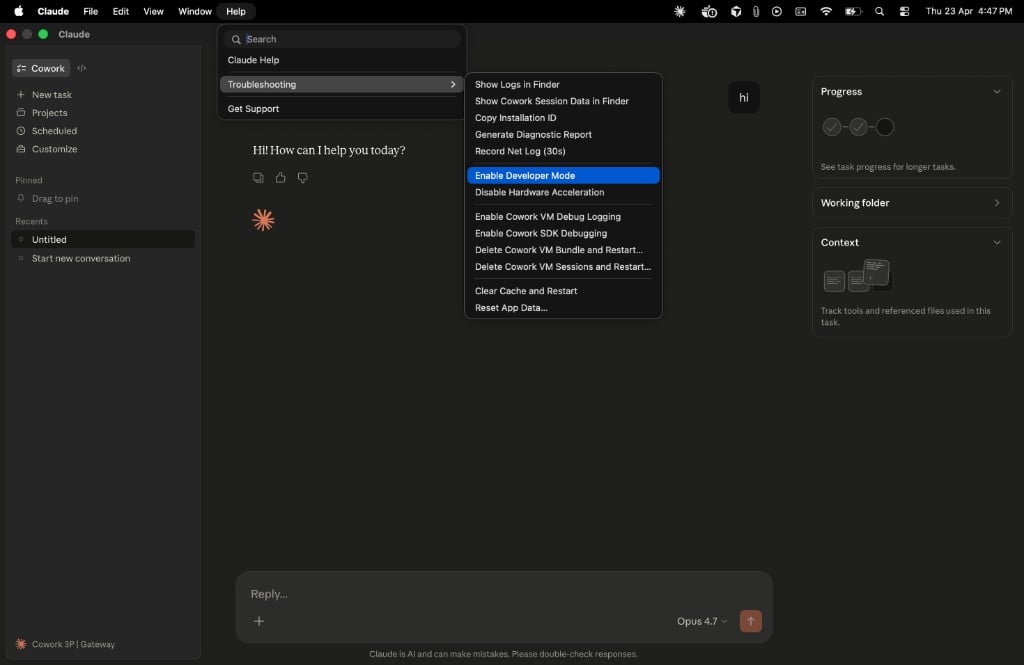
Open **Help → Troubleshooting → Enable Developer mode**. The menu lives in the menu bar on macOS and the hamburger menu (top-left) on Windows.
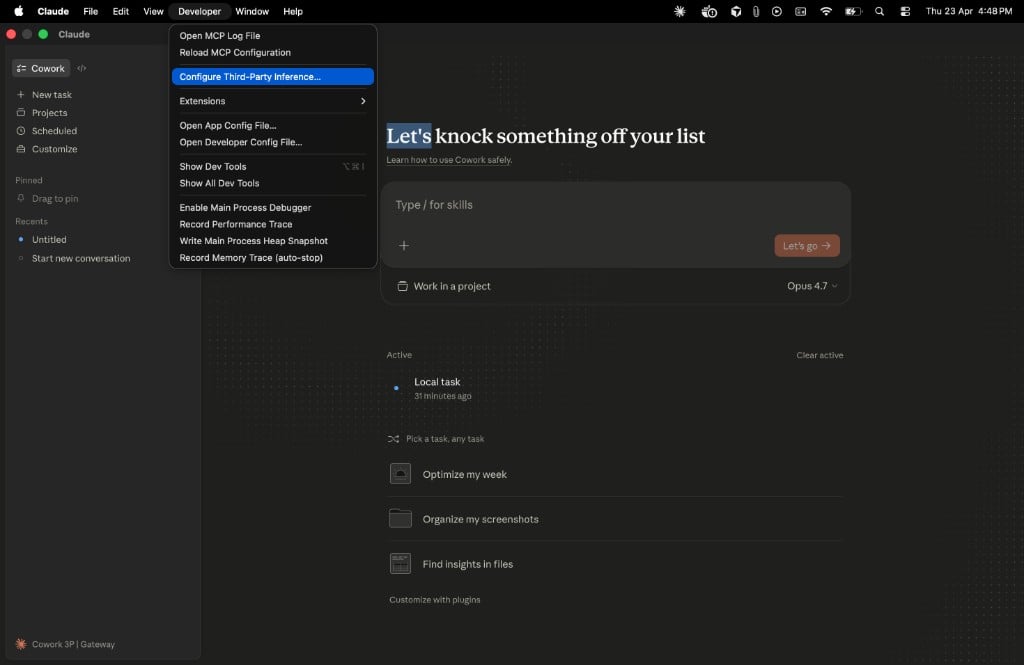
 Navigate to **Developer → Configure third-party inference**.
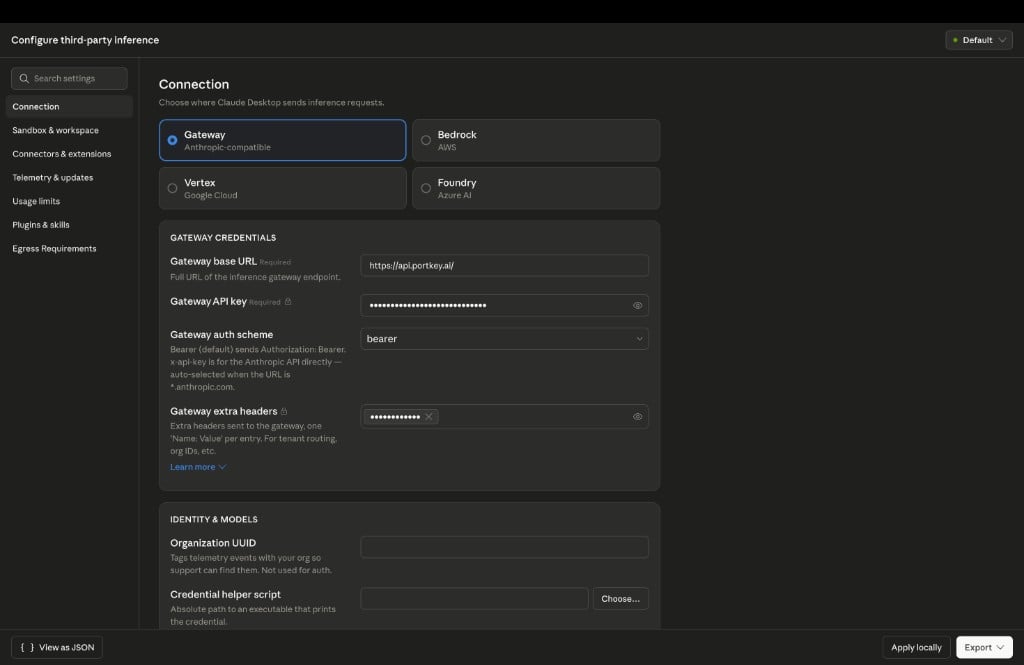
 Select **Gateway (Anthropic-compatible)** and fill in the fields:
| Field | Value |
| ------------------- | ------------------------ |
| Gateway base URL | `https://api.portkey.ai` |
| Gateway API key | Your Portkey API key |
| Gateway auth scheme | `bearer` |
Select **Gateway (Anthropic-compatible)** and fill in the fields:
| Field | Value |
| ------------------- | ------------------------ |
| Gateway base URL | `https://api.portkey.ai` |
| Gateway API key | Your Portkey API key |
| Gateway auth scheme | `bearer` |
 Under **Gateway extra headers**, add a new header:
| Field | Value |
| ------------ | ---------------------- |
| Header name | `x-portkey-metadata` |
| Header value | *(your metadata JSON)* |
```json theme={null}
{"tenant":"acme","user":"dev@acme.com","team":"engineering","env":"prod"}
```
Under **Gateway extra headers**, add a new header:
| Field | Value |
| ------------ | ---------------------- |
| Header name | `x-portkey-metadata` |
| Header value | *(your metadata JSON)* |
```json theme={null}
{"tenant":"acme","user":"dev@acme.com","team":"engineering","env":"prod"}
```
 Replace the values with what your platform team specifies. These fields drive analytics attribution and per-team filtering in Portkey.
Click **Apply locally**. Fully quit Claude Desktop (not just close the window), then reopen it.
A simple window close keeps the old process alive. The new gateway settings only load on a full quit and relaunch.
## Verify it works
Send any prompt in Claude Desktop, then run through these two checks.
Open [Portkey Logs](https://app.portkey.ai/logs). Your request should appear within a few seconds, tagged with the metadata you set in step 4.
Replace the values with what your platform team specifies. These fields drive analytics attribution and per-team filtering in Portkey.
Click **Apply locally**. Fully quit Claude Desktop (not just close the window), then reopen it.
A simple window close keeps the old process alive. The new gateway settings only load on a full quit and relaunch.
## Verify it works
Send any prompt in Claude Desktop, then run through these two checks.
Open [Portkey Logs](https://app.portkey.ai/logs). Your request should appear within a few seconds, tagged with the metadata you set in step 4.
 Click the log entry. Verify the **model** and **provider** fields match what your admin configured for your team, not Anthropic's default.
 Request shows in Logs with correct metadata and the expected model? You're done.
## Troubleshooting
Your Portkey API key is expired, revoked, or scoped to a different workspace. Get a fresh key from your admin or generate one yourself at [API Keys](https://app.portkey.ai/api-keys).
Three things to check:
1. Base URL is correct: `https://api.portkey.ai` for Portkey SaaS, or your org's self-hosted gateway URL. No trailing slash, no `/v1`.
2. Auth scheme is set to `bearer`.
3. You fully quit and relaunched Claude Desktop after applying settings (not just closed the window).
Metadata JSON must be valid (no trailing commas, no single quotes). Key names are case-sensitive and must exactly match what your admin configured in the policy rules.
Model routing is controlled by your admin's config in Portkey. If you're getting unexpected model behavior, your team's config likely points to a different model than you expect. Check with your platform team.
Either Developer mode isn't enabled (check **Help → Troubleshooting**), or your Claude Desktop build predates third-party inference support. Update the app from [claude.ai/download](https://claude.ai/download).
## FAQ
Yes. The menu paths differ slightly (covered in Step 1) but the gateway settings and headers are identical.
Yes, but Cowork has its own configuration surface inside Claude Desktop. See the [Claude Cowork guide](/integrations/libraries/claude-cowork) for the Cowork-specific setup.
Portkey adds single-digit milliseconds of overhead per request. You won't notice it during normal use.
Claude Desktop will surface the connection error like any other API failure. If your admin configured fallbacks in the Portkey config, traffic automatically routes to a backup provider before that happens.
Yes. Third-party inference is a Claude Desktop setting independent of your account type. Your platform admin can issue you a personal-scoped API key for pilot or solo use.
Claude Desktop stores third-party inference credentials in the OS keychain (macOS Keychain or Windows Credential Manager).
Your admin will give you the gateway URL for your self-hosted deployment. It will not be `api.portkey.ai`. Everything else in this guide stays the same: same auth scheme, same metadata header, same setup flow.
## Next steps
Tag requests with custom keys for richer filtering and cost attribution.
Use trace IDs to group related prompts into a single session view.
Filter analytics by team, model, or environment.
Get notified before you hit budget caps.
Request shows in Logs with correct metadata and the expected model? You're done.
## Troubleshooting
Your Portkey API key is expired, revoked, or scoped to a different workspace. Get a fresh key from your admin or generate one yourself at [API Keys](https://app.portkey.ai/api-keys).
Three things to check:
1. Base URL is correct: `https://api.portkey.ai` for Portkey SaaS, or your org's self-hosted gateway URL. No trailing slash, no `/v1`.
2. Auth scheme is set to `bearer`.
3. You fully quit and relaunched Claude Desktop after applying settings (not just closed the window).
Metadata JSON must be valid (no trailing commas, no single quotes). Key names are case-sensitive and must exactly match what your admin configured in the policy rules.
Model routing is controlled by your admin's config in Portkey. If you're getting unexpected model behavior, your team's config likely points to a different model than you expect. Check with your platform team.
Either Developer mode isn't enabled (check **Help → Troubleshooting**), or your Claude Desktop build predates third-party inference support. Update the app from [claude.ai/download](https://claude.ai/download).
## FAQ
Yes. The menu paths differ slightly (covered in Step 1) but the gateway settings and headers are identical.
Yes, but Cowork has its own configuration surface inside Claude Desktop. See the [Claude Cowork guide](/integrations/libraries/claude-cowork) for the Cowork-specific setup.
Portkey adds single-digit milliseconds of overhead per request. You won't notice it during normal use.
Claude Desktop will surface the connection error like any other API failure. If your admin configured fallbacks in the Portkey config, traffic automatically routes to a backup provider before that happens.
Yes. Third-party inference is a Claude Desktop setting independent of your account type. Your platform admin can issue you a personal-scoped API key for pilot or solo use.
Claude Desktop stores third-party inference credentials in the OS keychain (macOS Keychain or Windows Credential Manager).
Your admin will give you the gateway URL for your self-hosted deployment. It will not be `api.portkey.ai`. Everything else in this guide stays the same: same auth scheme, same metadata header, same setup flow.
## Next steps
Tag requests with custom keys for richer filtering and cost attribution.
Use trace IDs to group related prompts into a single session view.
Filter analytics by team, model, or environment.
Get notified before you hit budget caps.